Authorize Assets
Navigate to Inventory
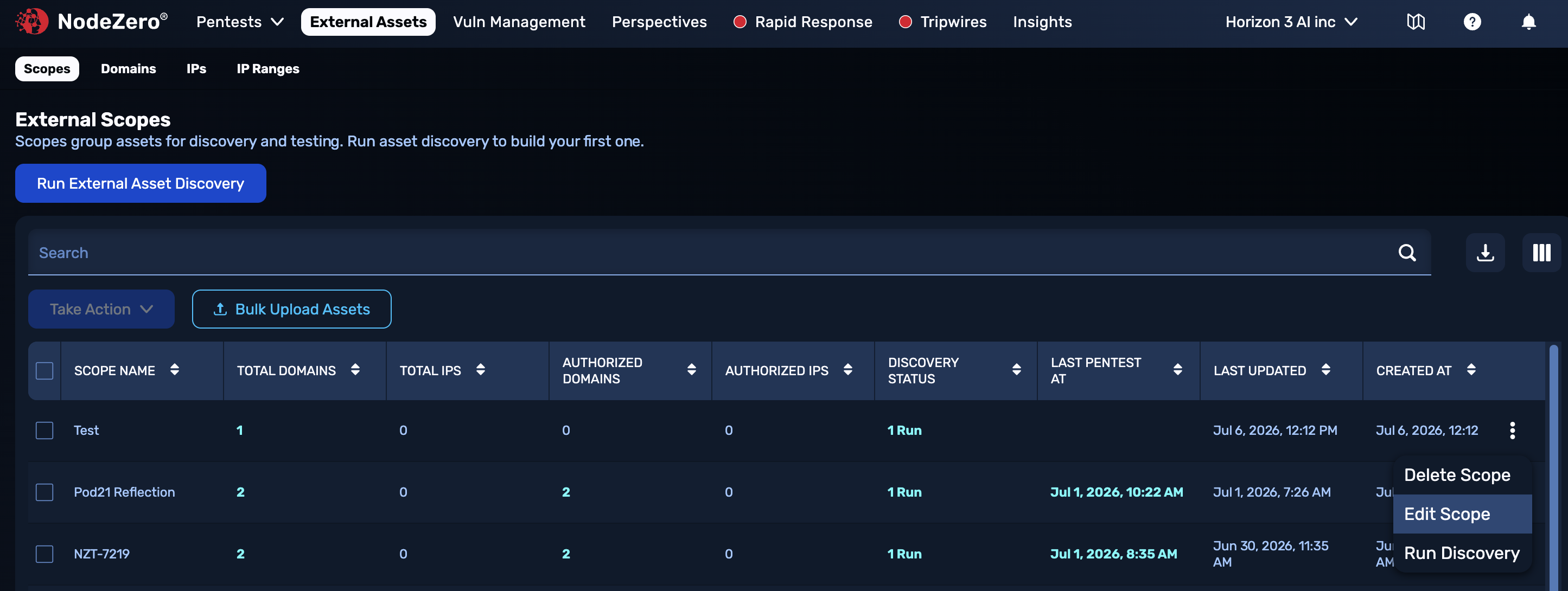
Now that Asset Discovery has been completed, navigate to Inventory to review and authorize assets for external pentesting.

Click on the Scope
Click a Scope of interest whose Discovery Status shows at least 1 Run.

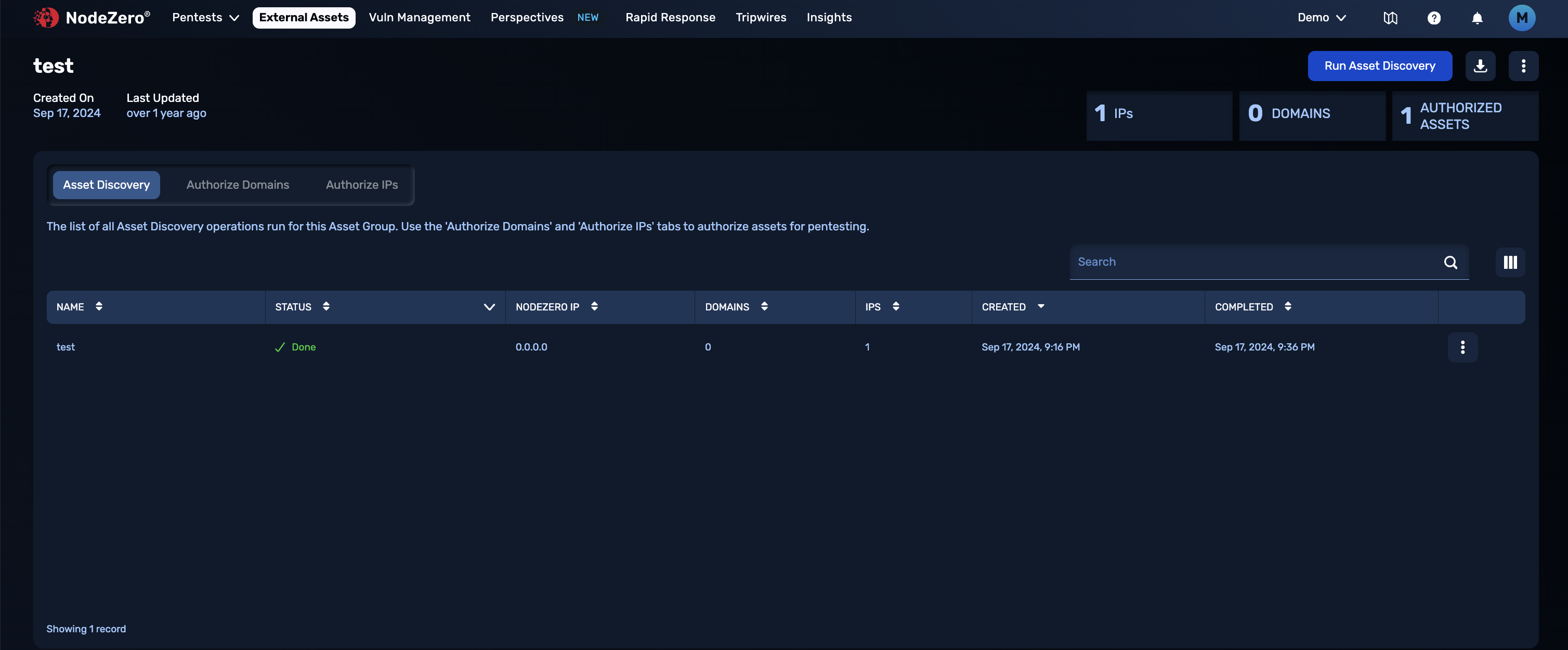
Review Asset Discovery
You can check Asset Discovery results and see what has been found.
Repeat discovery
Re-run Asset Discovery frequently to maintain the most up-to-date information on the status of your assets. You can automate this using a Scope's Enable Schedule option.
Authorize Domains
On the Inventory (formerly External Assets) page, use the upper tabs to authorize Domains and IPs for external pentesting.
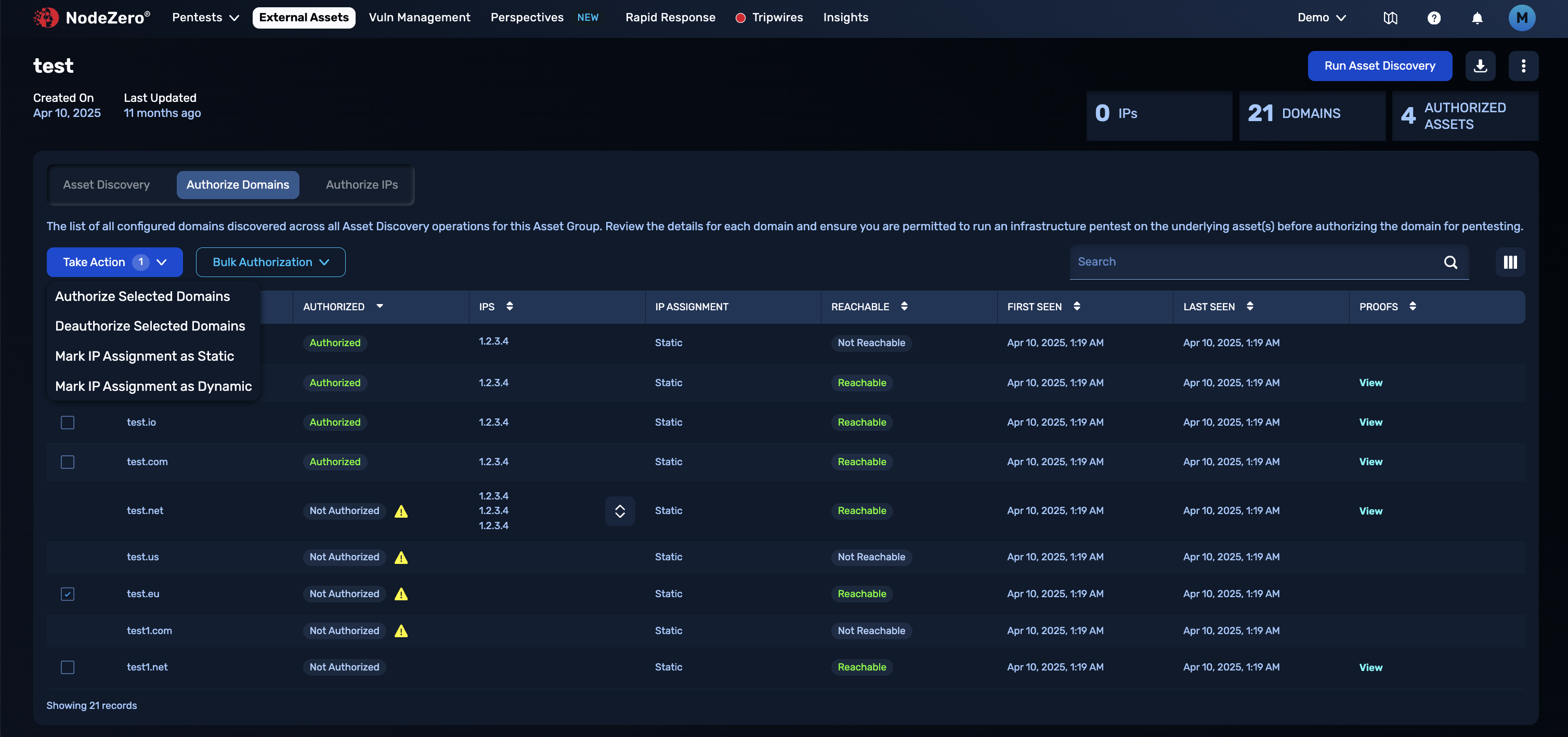
On the Domains tab, review discovered domains and subdomains identified during Asset Discovery. To authorize assets for a pentest, select the asset(s), click Take Action, and then click Authorize Domain(s). You'll need to explicitly authorize automatically discovered subdomains.
Authorize assets carefully
Authorize only the assets you are legally permitted to pentest. You are responsible for accurately defining the scope of the Services for both internal and external testing. See Terms and Conditions for more information.
Asset IP Assignment
During an external pentest, NodeZero uses the asset’s IP Assignment to determine whether an asset stays in scope for the pentest. You can mark each IP Assignment as Static or Dynamic, using the Take Action menu shown in the preceding screenshot. By default, assets are set to Static.
Static Versus Dynamic IP Resolution
Static or Dynamic indicates each IP address' expected stability over time.
Static IP Resolution indicates that the IP address resolved from the domain name is not expected to change. Assets labeled Static will be removed from the scope if the asset resolves to a different IP address during the External Pentest, compared to during the Asset Discovery.
Dynamic IP Resolution indicates that the IP address resolved from the domain name is expected to potentially change over time. Assets labeled Dynamic will remain in scope even if the IP address changes between the Asset Discovery and the External Pentest. An example of a Dynamic asset IP would be AWS assets, for which the resolved IP address is controlled by AWS and therefore might change between pentests.
Authorize IPs
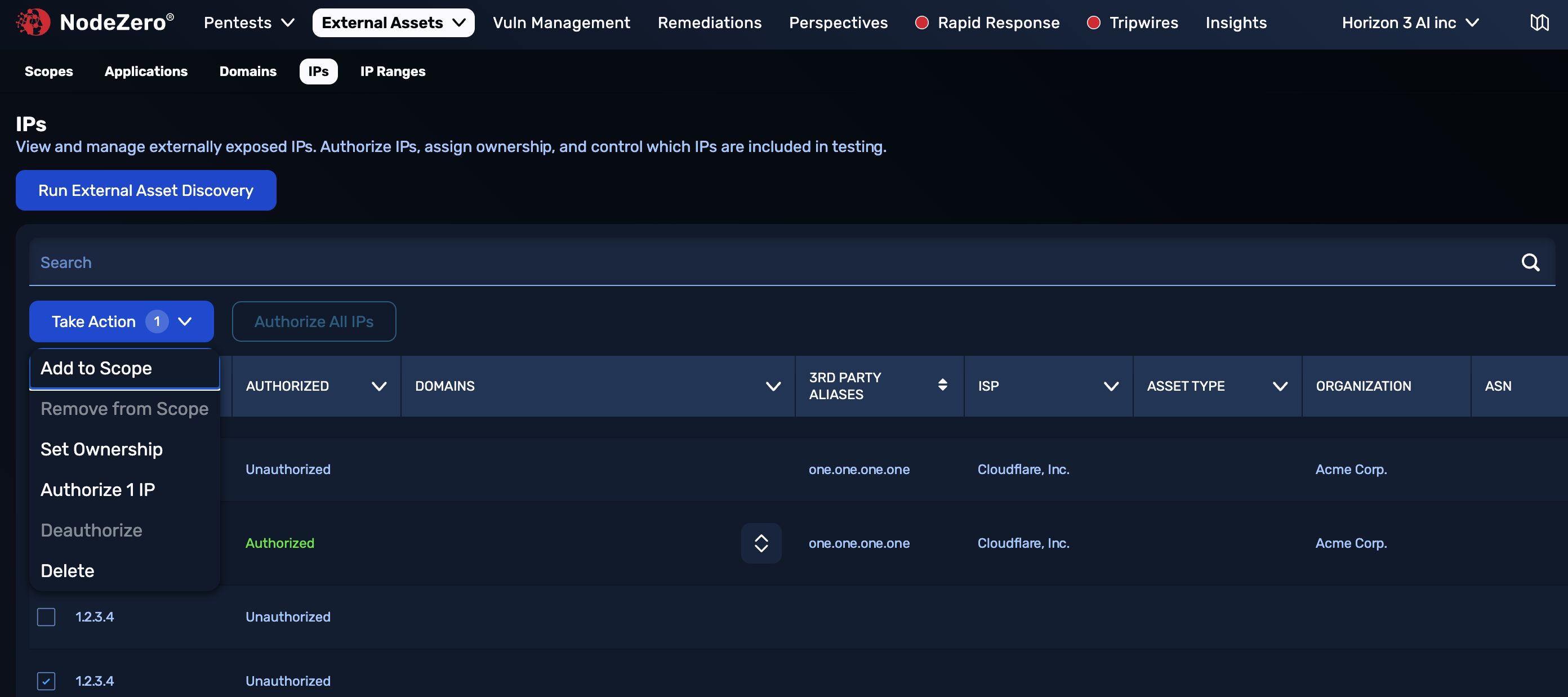
On the IPs tab, view reachable IP addresses in the Scope's configuration. To authorize IP addresses for a pentest, select them, click Take Action, and then click Authorize IP(s).
IP Ranges for Discovery
The IP Ranges tab is not used to directly authorize assets. It facilitates populating a Scope with multiple IPs for asset discovery. For details, see Create a Scope.
Edit Connections
To add or remove connected AWS or Git accounts, edit the Scope's configuration. Click the Scopes tab at the upper left, then open the Scope's Actions () menu and select Edit Scope. For details about this and other Scope configuration options, see Create a Scope.