Templates
Templates enable you to save a pentest configuration and then use that saved configuration when running a one-off pentest, or when scheduling repeated pentest runs. In the NodeZero Portal, you can save or load templates from within the Run Assessment UI, or by using the template management page.
Templates in the Run Assessment UI
When you define a one-off pentest using the Run Assessment UI, you can click the Save Template button at the bottom to store your test configuration in a template for future use:

If you want to use a previously saved template when defining a test, use the Pentest Template drop-down at the top:

Template Management Page
Although you can access or create templates from within the Run Assessment UI, you might want to see all of your templates and manage them in one place. For this, you can use the template management page. This page lists all of your templates and lets you duplicate or delete them. You can edit templates you saved earlier, and create new ones.
To access the NodeZero Portal's template management page, select Pentests >Templates from the top navigation:

The Template List
The template list shows you all of your templates in one place:

You can click on each column header to adjust the sort order for the table. You can also search template titles by entering some text in the search box at the top of the table.
By default, the template table shows templates belonging to any test type. You can filter this list to show only a specific test type by opening the drop-down to the right of the Type column header:
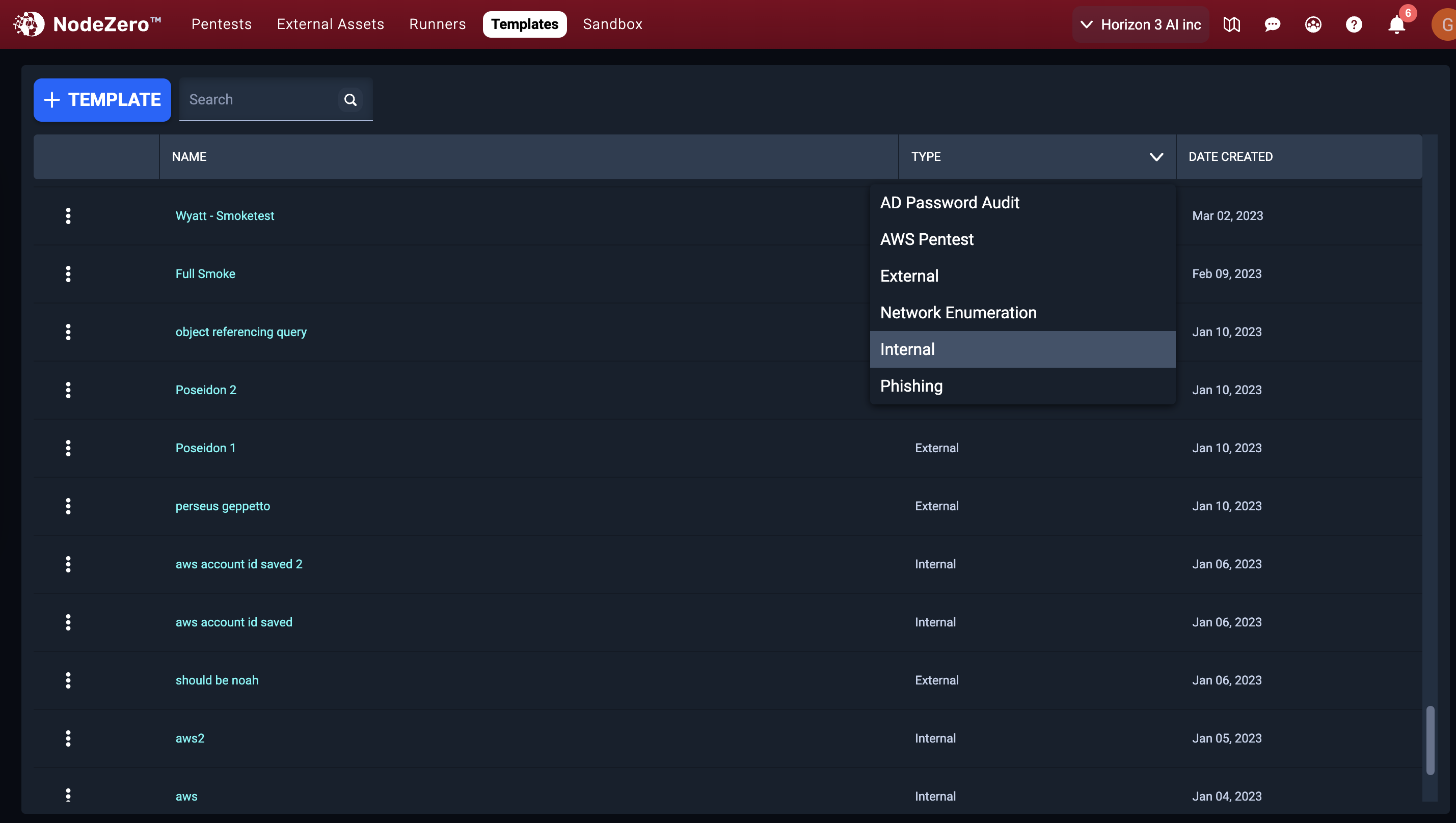
Within the table, you can duplicate or delete any template row by opening the Actions () menu for that row and selecting the corresponding action:

Template names must be unique
Template names must be unique within your organization. If you attempt to create or duplicate a template with a name that is already used by an existing template, you'll receive a warning. You can choose to overwrite the original template, or to cancel and then choose a new name.
Creating Templates
You can create a new template from the Templates management page by clicking the + Template button near the top:

This will open the Create a Template page, where you can select which type of template you want to create:

After selecting a type, you'll see a page where you can input all configuration details for this template. NodeZero will use this configuration when starting pentests based on this template. For details, see Running Pentests Using Templates.
You can use the navigation links on the left to jump to different parts of the page. Every template must have a name and a default pentest name (which is reused as a default name when running pentests from this template).
Depending on the test type you selected for this template, the page will have different fields. For example, here's the form for an Internal Pentest template:
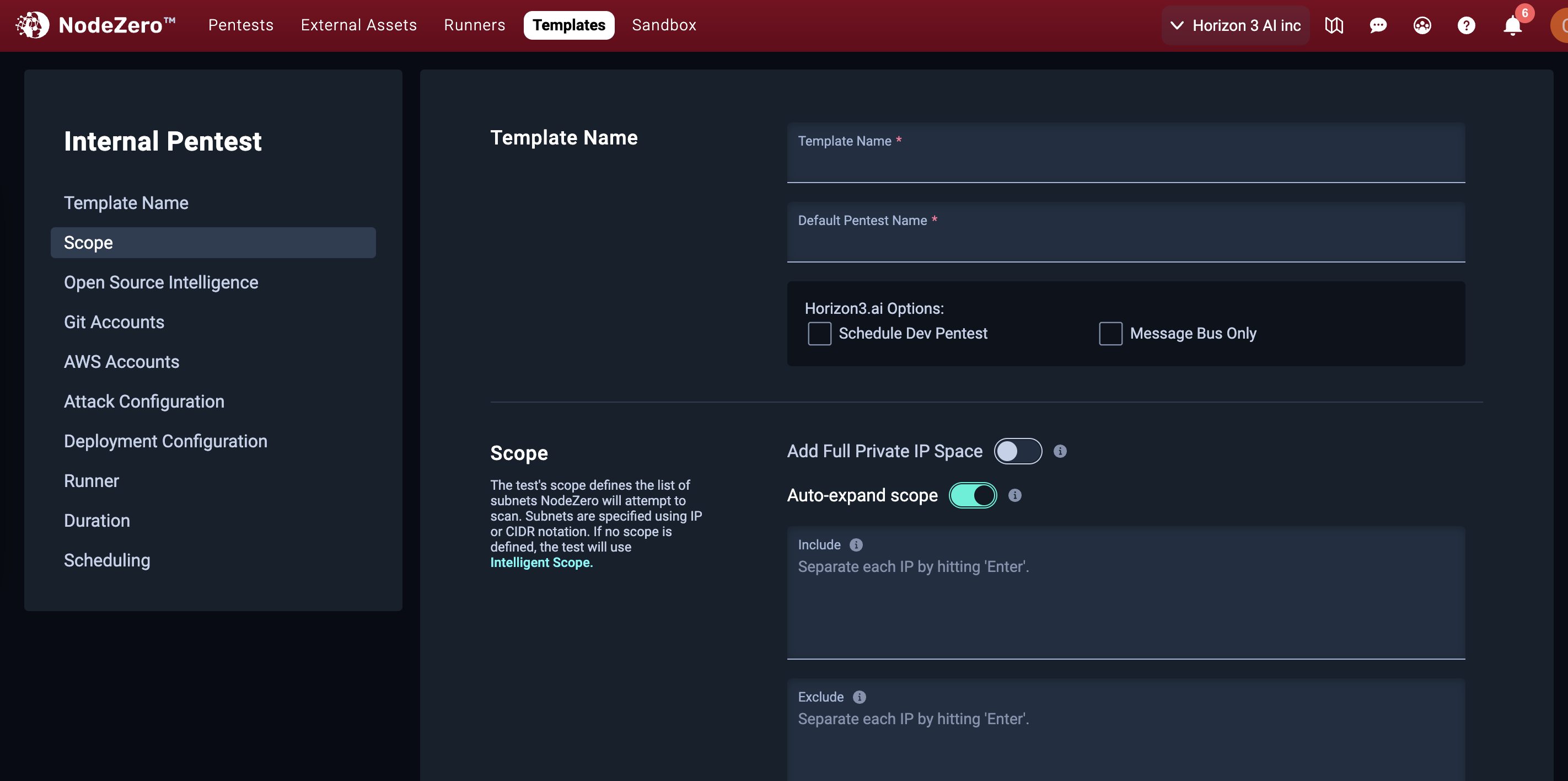
Fill in this page to match your testing requirements. (Remember that template names must be unique per organization.) Then click Add Template at the bottom.
If any field values or empty fields block saving the template, you'll see the validation errors highllighted on the page. Otherwise, you'll be taken back to the Templates list. Your new template will be ready to use when configuring future pentests of the corresponding type.
For details about configuration parameters per test type, and about what they do, see Tests and Assessments.
Editing Templates
You can edit the configuration for an existing template. To do this, find the template you want to edit in the list, and click on it. This will take you to the edit page for that template, which is similar to the page for creating templates. The main difference is that you cannot change the template's type or name after they were first saved.
Make any required changes to this template, and then click Update Template at the bottom of the page. You'll be returned to the Templates list.
Running Pentests Using Templates
Templates help you easily start pentests by pulling in the template's predefined configuration. There are two ways to do this: manually, or on a schedule.
To manually start a pentest using a template, use the Run Assessment UI, as described earlier in this topic.
You can also run pentests regularly by setting up a schedule. For more information, see Automate Scheduling of Pentests.