Azure
Warning
This guide should be used as a functional example only. Identity Admins should follow their company's policies and best practices when implementing Single Sign-On (SSO).
Similarly, because these guides are for services that Horizon3 does not control, screenshots and configuration options might be different then what you see here.
All sections of this page should be completed by someone with permissions for Identity Team Admin.
Create Azure Enterprise Application
-
Log into Azure Portal and browse to the
Microsoft Entra IDservice.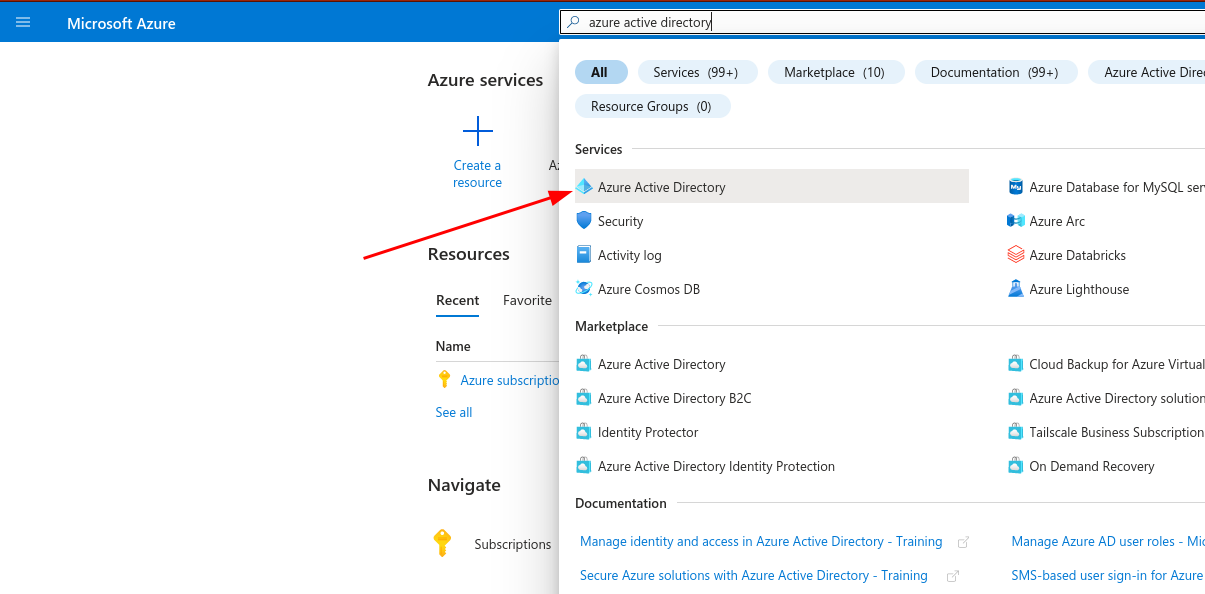
-
In the left-hand menu's
Managesection, clickEnterprise applications.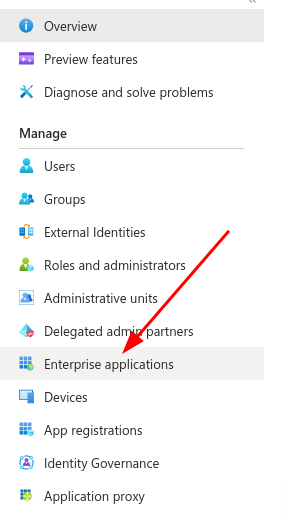
-
Then click
New Application.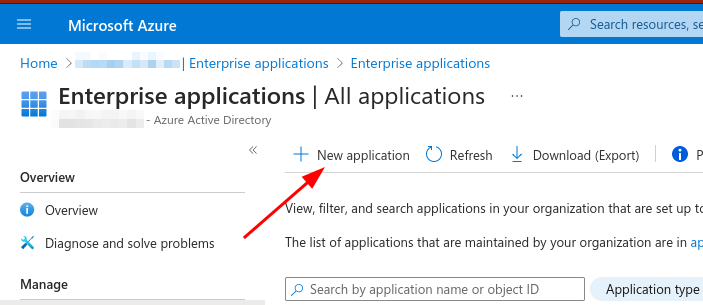
-
Then click
Create your own application.Required role
You will need to have one of the following Azure AD roles in order to create a new application:
Global AdministratororApplication Administrator.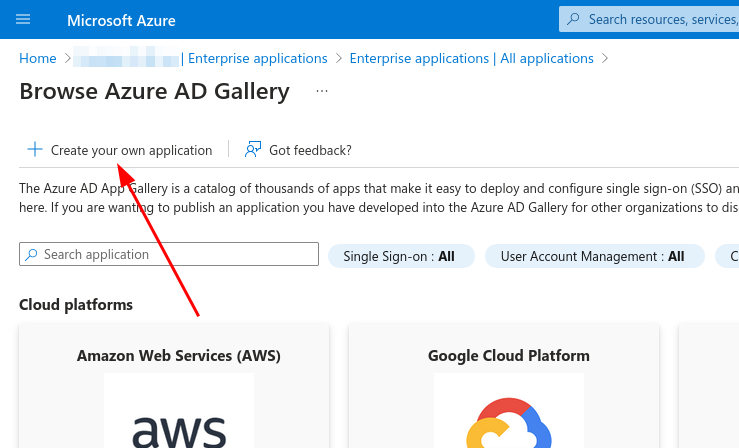
-
Name your app
NodeZero Portal. -
Select
Register an application to integrate with Microsoft Entra ID (App you're developing).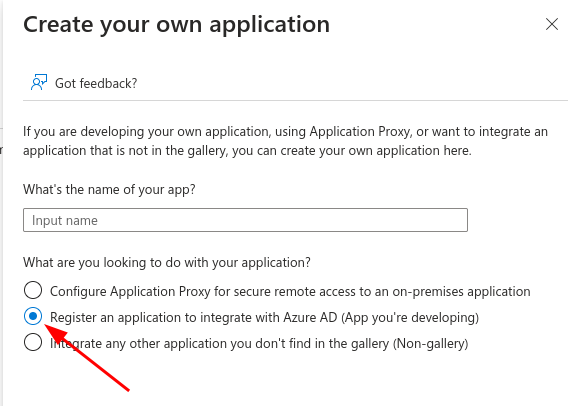
-
Click
Create. -
On the
Register an applicationpage, you can choose to set a different user-facing name for the app, if desired. -
Ensure that the
Supported account typesdrop-down is set toSingle tenant only.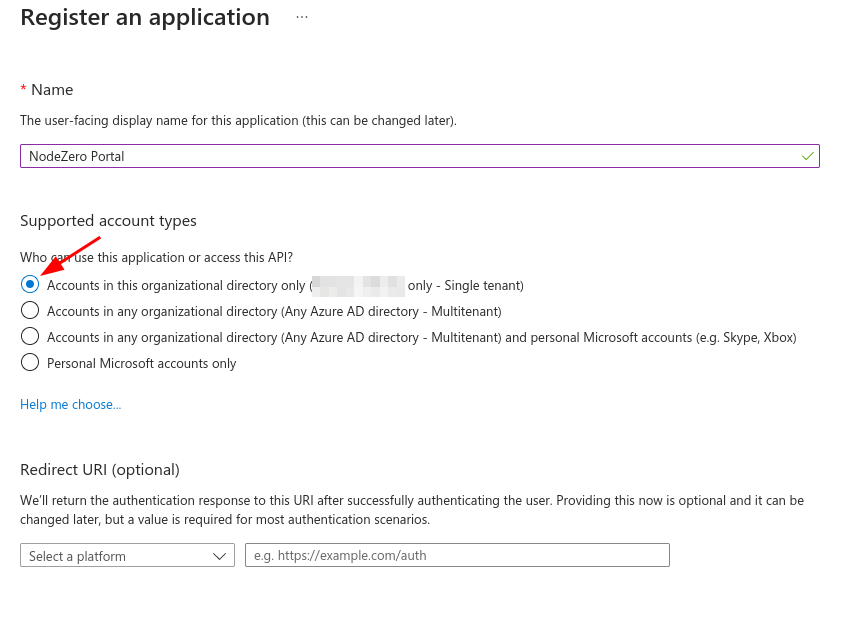
-
Leave the
Redirect URIsection blank for now. -
Click
Register.
Copy Client ID
After registering the app, you'll be taken back to the Browse Microsoft Entra App Gallery page. Navigate back to
the Enterprise applications page, find your newly created app, and click it.
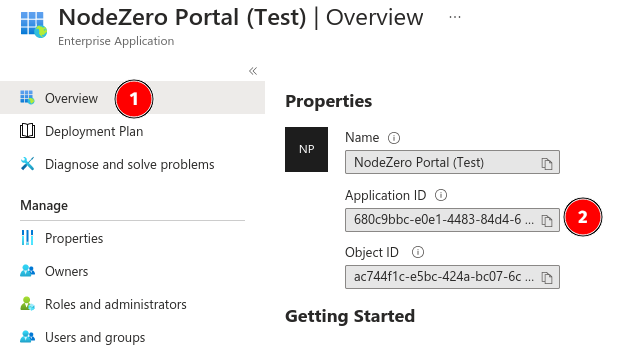
- Click on the
Overviewpage. - Save the
Application ID. This is theClient IDthat you will need to provide to your Portal Org Admin later.
Configure Single Sign-On
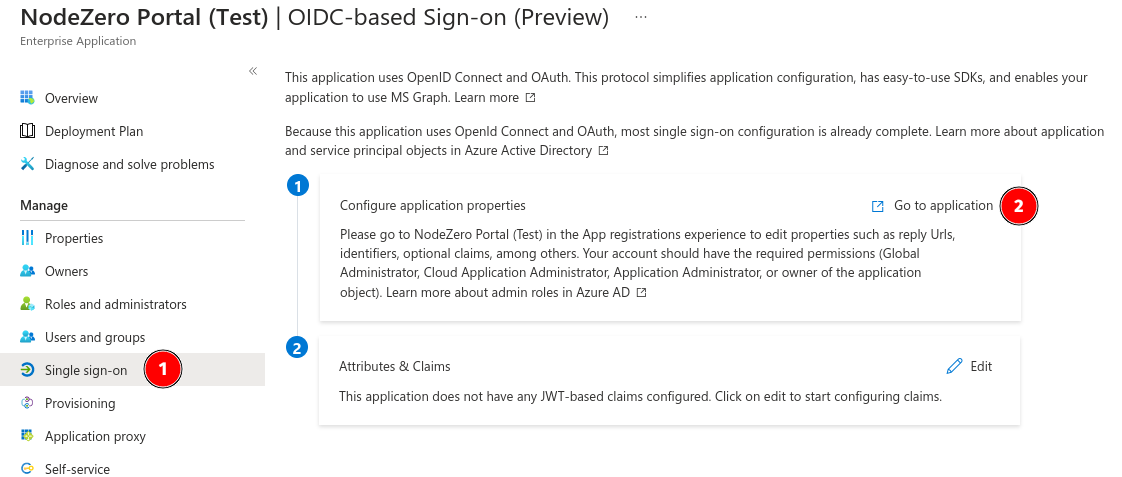
Under the Manage section of the left-hand menu:
- Click
Single sign-on. - Click
Go to application.
Copy Issuer URL
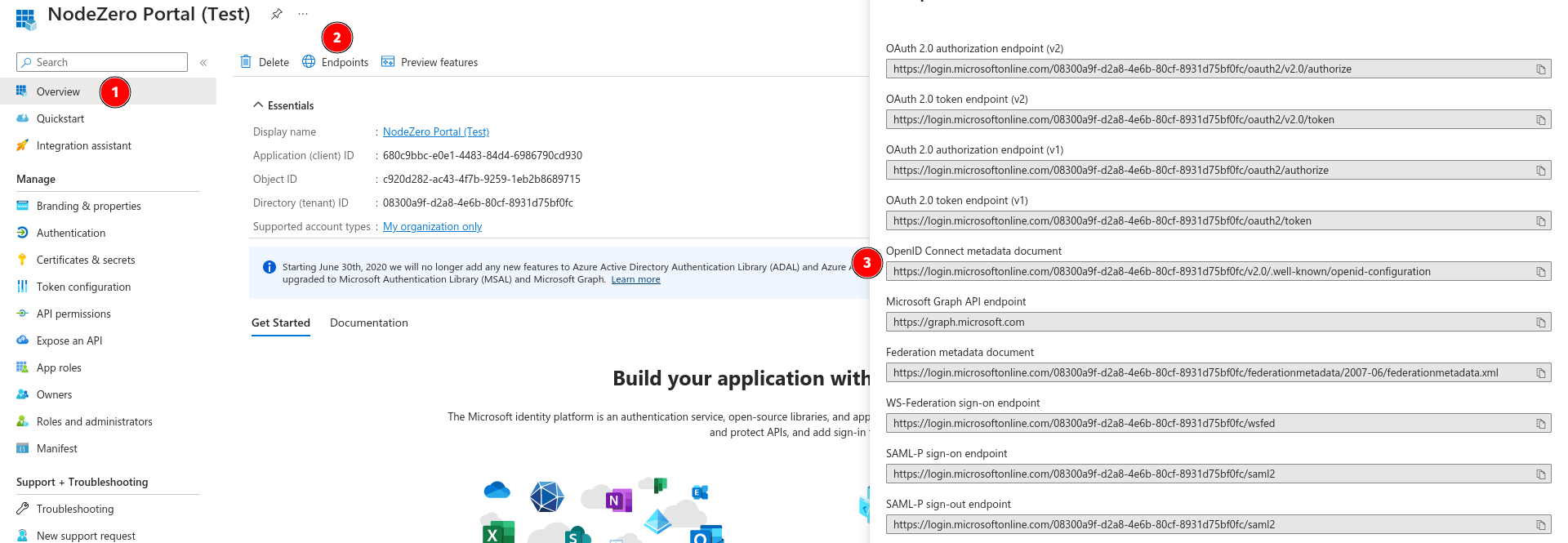
On the new Overview page (step 1), click the Endpoints tab (step 2) and copy the OpenID Connect metadata document value (step 3). This is this Issuer URL that you will need to
provide to your Portal Org Admin later.
Configure Authentication
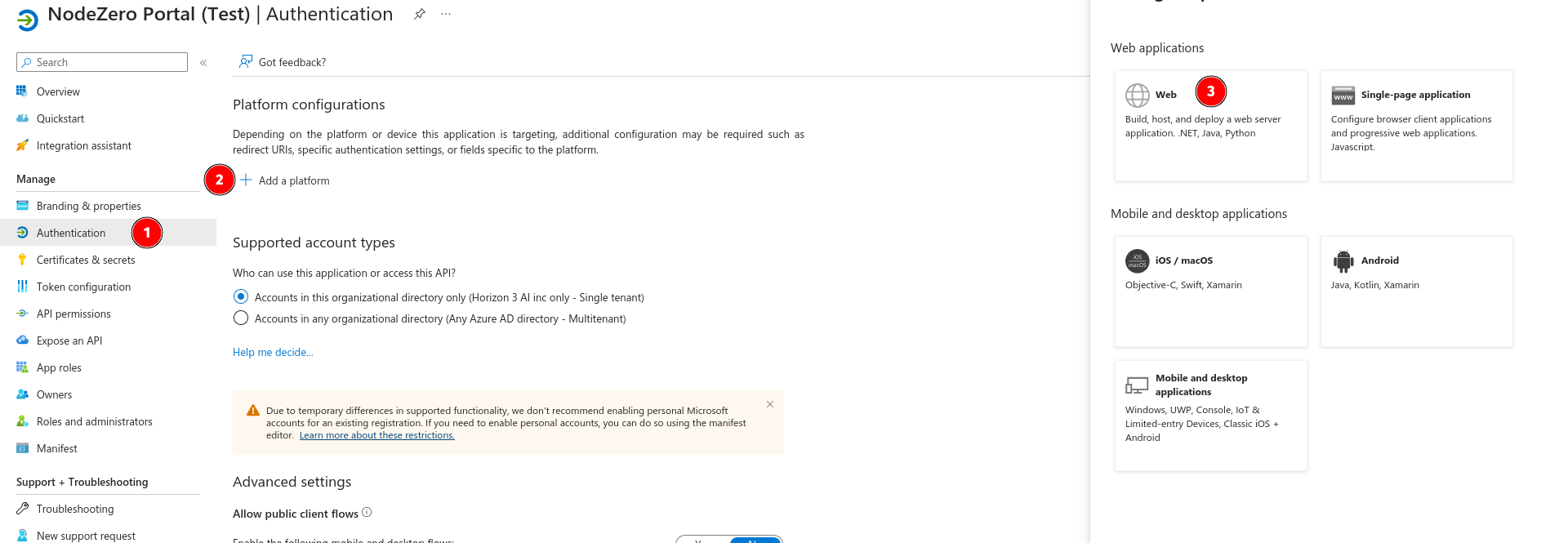
Under the Manage section,
- Click
Authentication. - Click
Add Redirect URI. - In the
Web applicationssection that opens to the right, click theWebbutton.
Use the information in the table below to fill out the Redirect URIs field. Be sure to select
the correct tab, based on which regional Portal your users access.
| Field | Value |
|---|---|
| Sign-in redirect URIs | https://portal.horizon3ai.com https://auth.horizon3ai.com/oauth2/idpresponse |
| Field | Value |
|---|---|
| Sign-in redirect URIs | https://portal.horizon3ai.eu https://auth.horizon3ai.eu/oauth2/idpresponse |
| Field | Value |
|---|---|
| Sign-in redirect URIs | https://portal.horizon3ai.au https://auth.horizon3ai.au/oauth2/idpresponse |
Create Client Secret
Under the Manage section,
- Click
Certificates & secrets. - Click
New client secret. - Enter a description.
- Set the
Expirescolumn to a value that aligns with your company's policies. -
Click
Add.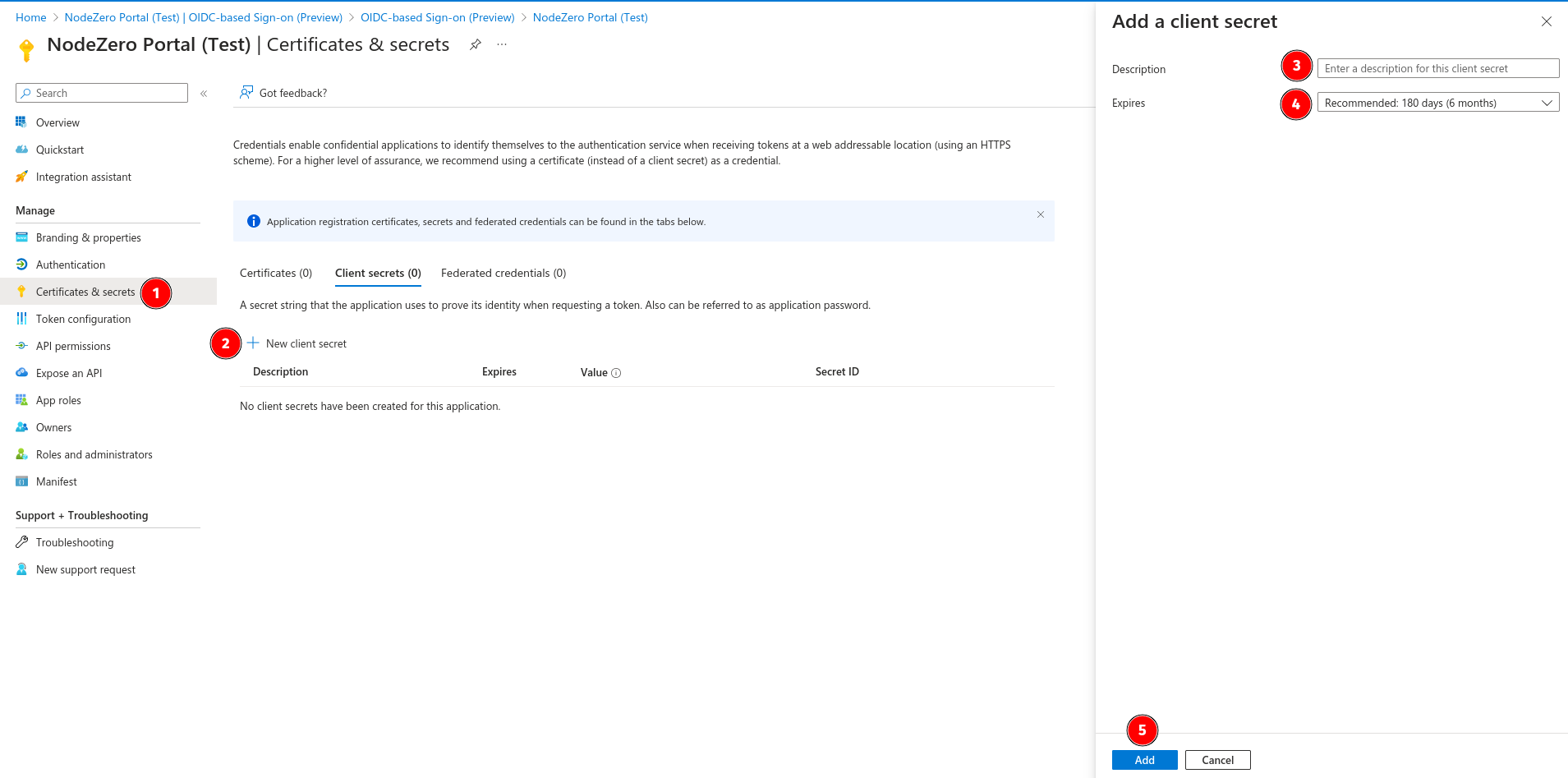
-
Copy the
Value.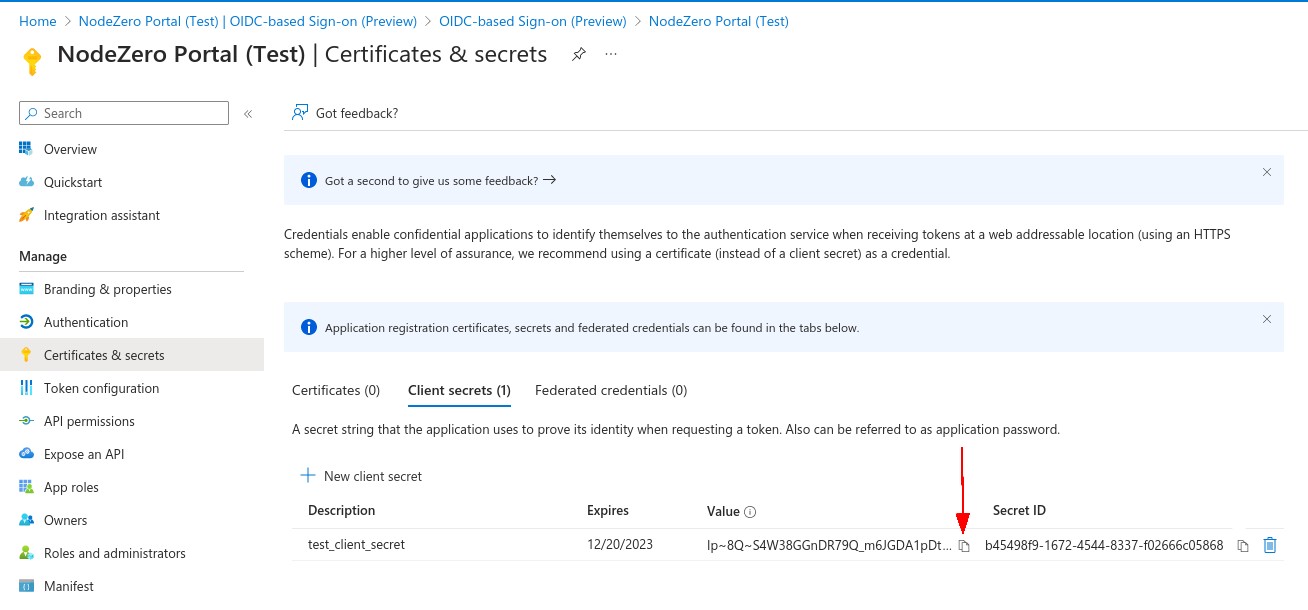
This is the Value that you will need to provide to your Portal Org Admin later.
Configure API Permissions
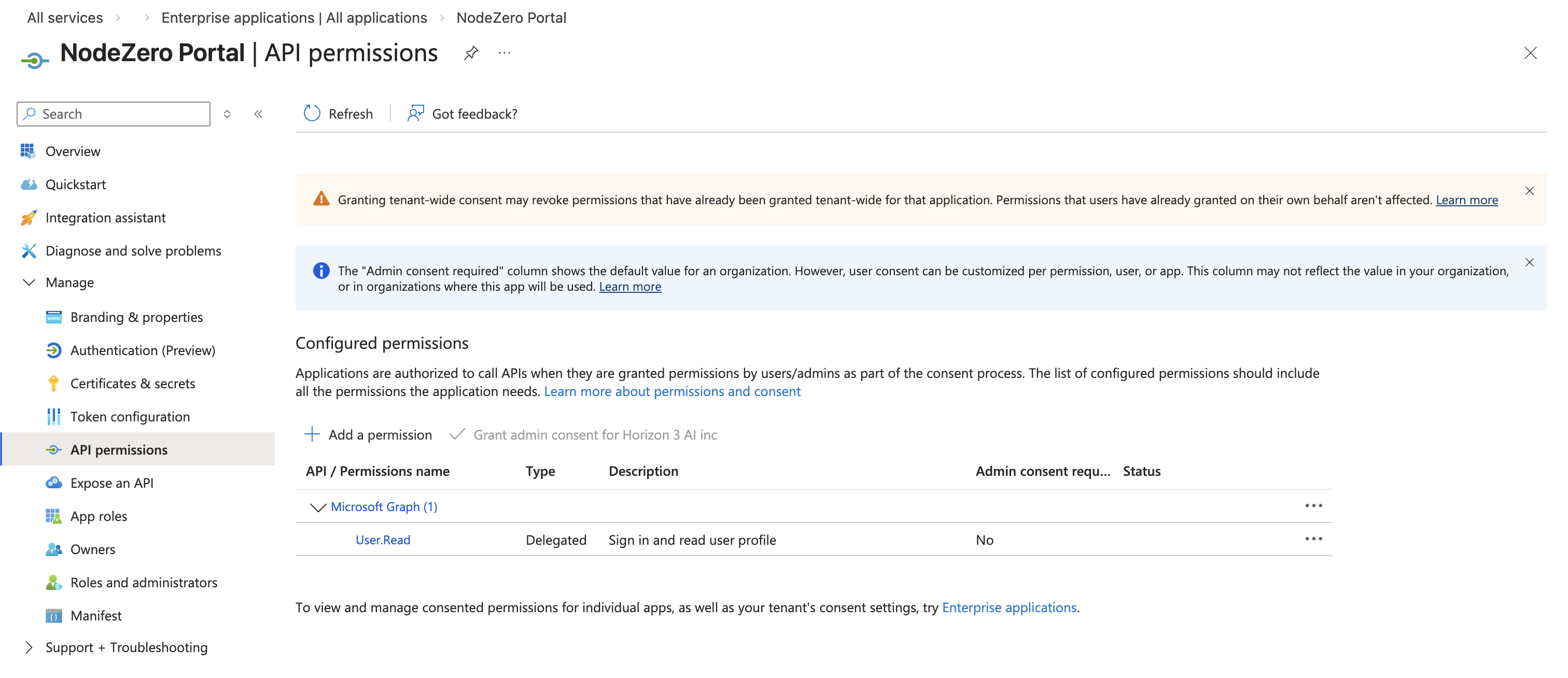
Under the Manage section,
- Click
API permissions. - Ensure that the Microsoft Graph
User.Readpermission is configured (it should be by default).
Configure App Roles
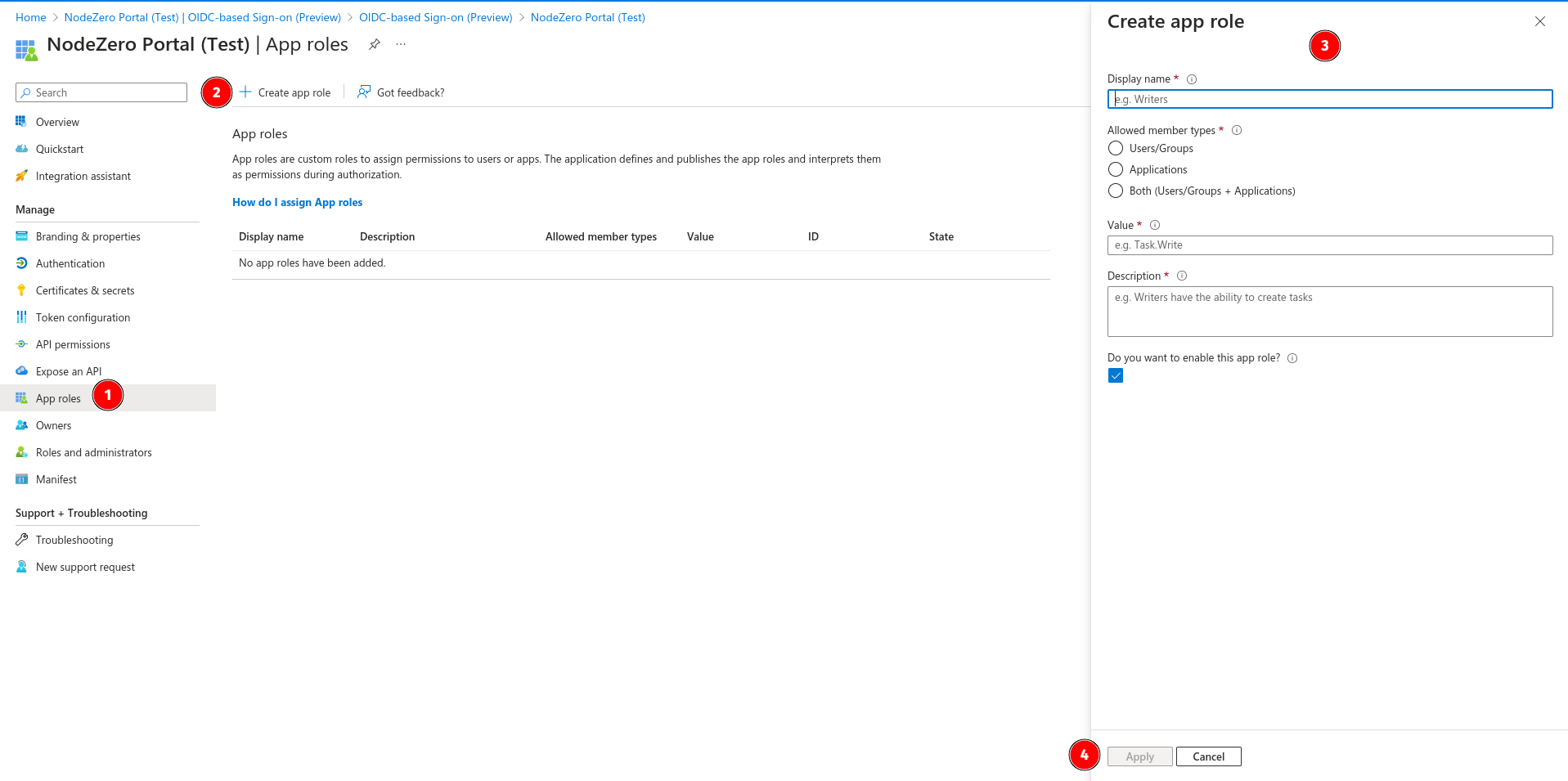
Under the Manage section,
- Click
App roles. - Click
Create app role. -
Fill out the form that opens on the right, using the information in the table below.
Field Value Display name NodeZero Portal Users Allowed Member Types Users/Groups Value Read Description App role granting read to NodeZero Portal app. Do you want to enable this app role? -
Click
Apply.
Provide Information to Org Admin
Provide the Client ID, Client Secret, and Issuer URL you copied in previous steps to your Portal Org Admin,
so that they can configure the SSO Provider in the Portal. After the SSO
Provider has been set up, your Portal Org Admin will need to provide you the Initiator URL so that you can
complete the app configuration.
Configure Branding & Properties
Initiator URL
You will need the Initiator URL from your Portal Org Admin before you can proceed with this section.
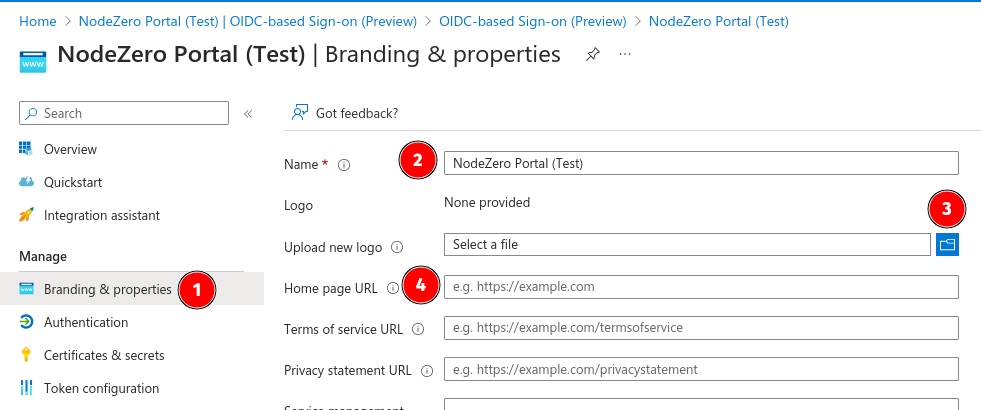
Under the Manage section,
- Click
Branding & properties. - Fill out the form using the assets in the table below: the Name (step 2), Logo (step 3), and Home page URL (step 4).
- Click
Save.
| Field | Value |
|---|---|
| Name | NodeZero Portal |
| Logo |  |
| Home page URL | Add Initiate login URI here |
Configure Users and Groups
To grant users access to your new app, you will first need to navigate back to the Enterprise applications
page we visited at the beginning of this guide.
Under the Manage section
- Click
Users and groups. -
Click
Add user/group.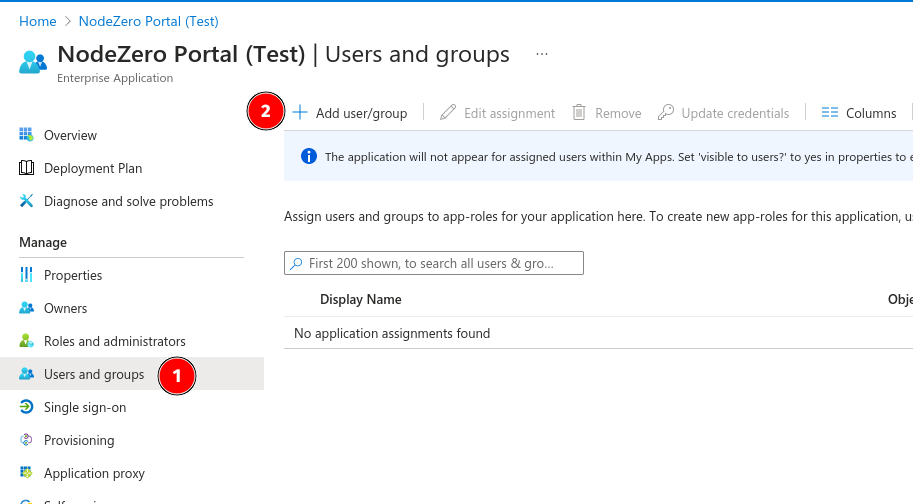
-
Select the appropriate users/groups.
- Select the
NodeZero Portal Usersapp role we created in a previous step. - Click
Assign.
Edit App Properties
By default, the app will not appear for assigned users within MyApps. You will need to edit the
visibility and assignment properties of the app.
Under the Manage section, click Properties and follow these steps:
- Slide the toggle to
Yesfor bothAssignment required?and Visible to users?.- Click
Save.
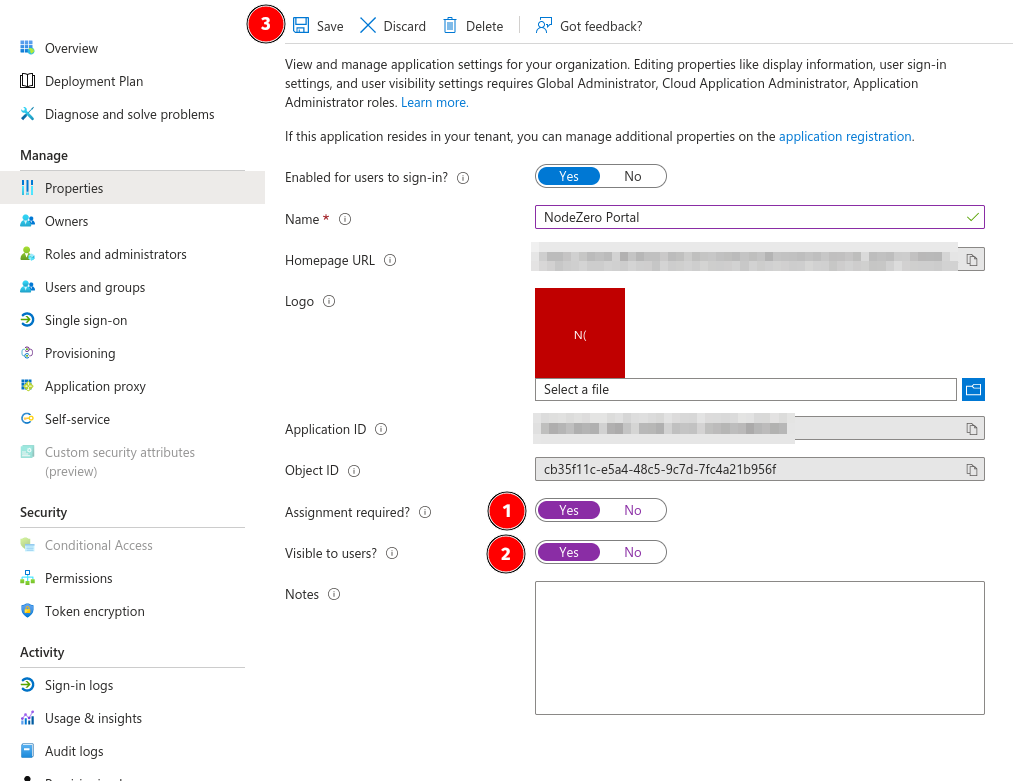
It can take 5–10 minutes for the app to appear in MyApps.
At this point, users can access by navigating to MyApps,
logging in with their company credentials, and selecting the NodeZero Portal application tile.