Rapid Response Details
From the NodeZero Portal's summary feed of Rapid Response advisories, click any advisory's View details button to view extensive metadata about the vulnerability or issue, along with personalized guidance and progress metrics on eliminating your risk. This Details page includes multiple panels, which we describe below.
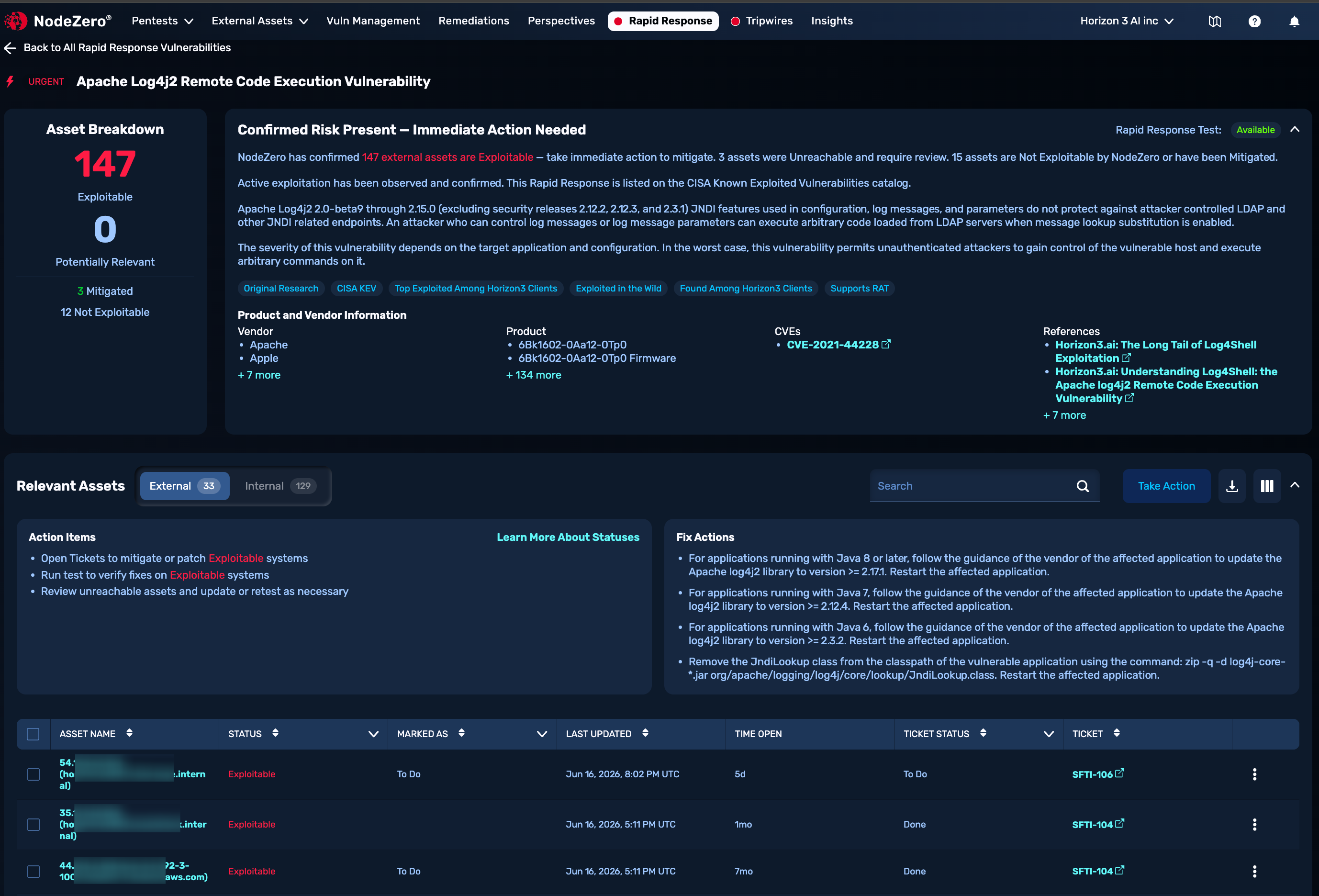
Asset Breakdown
This panel lists the number of assets that Horizon3 has found to be Exploitable, Potentially Relevant, Mitigated, Regressed, or Not Exploitable.
Description
An expanded version of the description card in the summary feed, this panel provides links to access all affected vendors and products, all relevant CVE (Common Vulnerabilities and Exposures) or H3 weakness identifiers, and all relevant external references that Horizon3 has identified.
This panel might include any combination of status tags that summarize public and Horizon3 original research into the vulnerability.
The upper right indicates whether a Rapid Response Test is currently Available or Unavailable.
Relevant Assets
This paginated table provides a single interface to manage and audit all your assets & statuses. Along the top, you can filter the display using External versus Internal buttons, a search bar, and column toggles.
As with other NodeZero tables, most columns offer sorting and/or filtering controls. Each ASSET NAME entry links to an Asset Details page.
Each TICKET entry, where present, links to a ticket you've created in a ticketing system, like Jira, that you've integrated and synced via Vulnerability Management Hub. Adjacent columns show the status of the relevant asset and of any ticket.
You can use the check boxes at left to select multiple assets before taking a single action (such as creating one test or ticket for the group), using the Take Action control above the table.
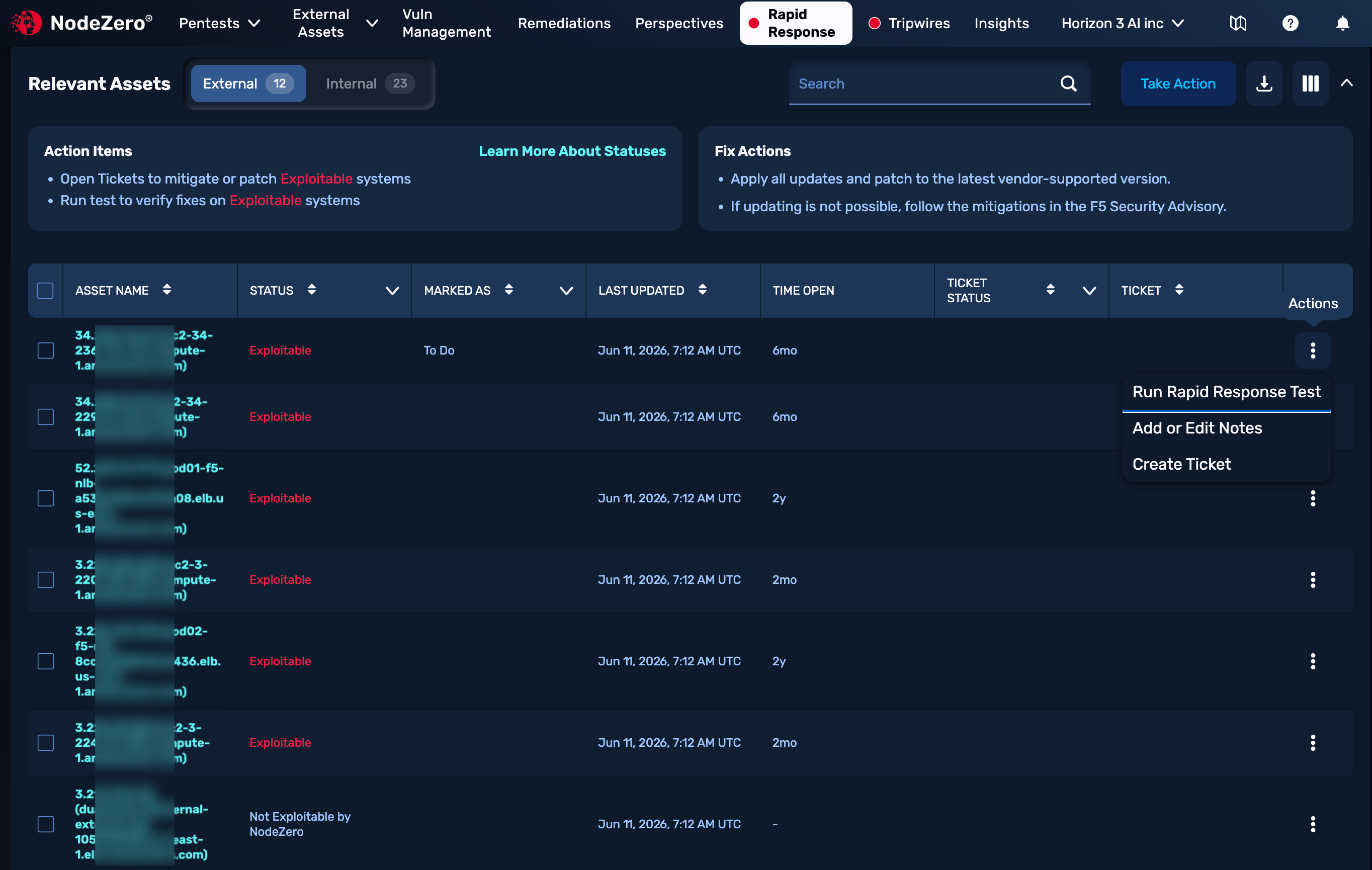
Asset Status
This column shows the current status of each potentially affected asset. This status will change as you mitigate risks, and as you or NodeZero conduct further testing.
Ideally, you want to see statuses trending toward green or gray Not Vulnerable, Not Exploitable, or Mitigated. (Click Learn More About Statuses above the table to see descriptions and recommended actions for each status.)
Take Action
Above the Relevant Assets table, the Action Items and Fix Actions panels display personalized guidance about how to address your most exploitable assets.
The Take Action control at the upper right acts in one of two ways:
If you selected individual assets in the Relevant Assets table, you'll see a drop-down that provides options scoped to that group of assets: You can run a targeted internal or external Rapid Response test to prove exploitability or successful mitigation, or add a status note within NodeZero, or create an actionable ticket within an integrated ticketing system (indicated in Relevant Assets above).
If you have not integrated a ticketing system, the Create Ticket button here downloads a CSV (comma-separated value) file, containing relevant details to relay to your team to fix the issue(s).

If you did not select individual assets in the Relevant Assets table, clicking this button opens the modal shown below.
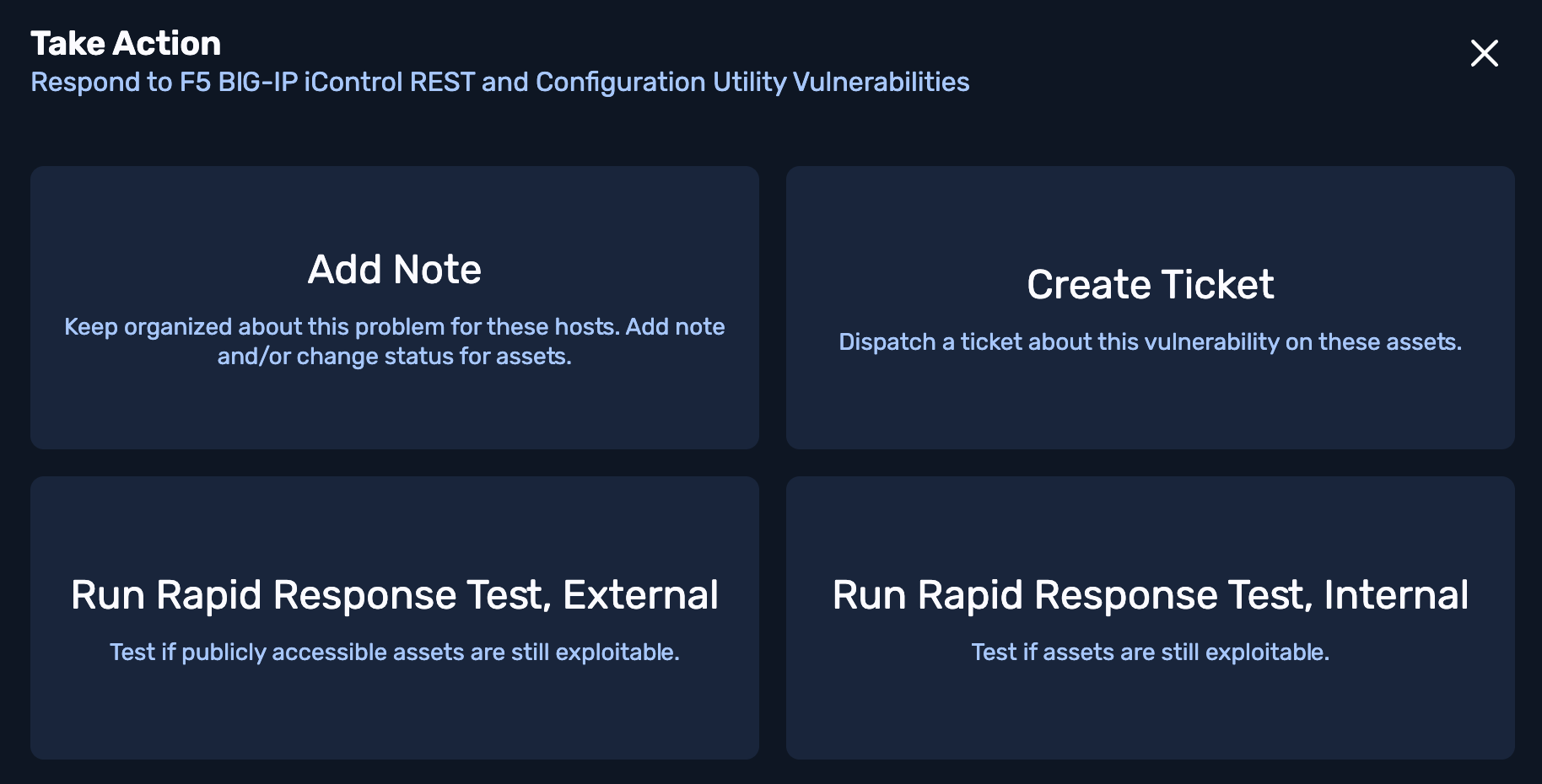
In this case, you have the option to take action against all assets in a given status. You can select one or more available statuses using check boxes.
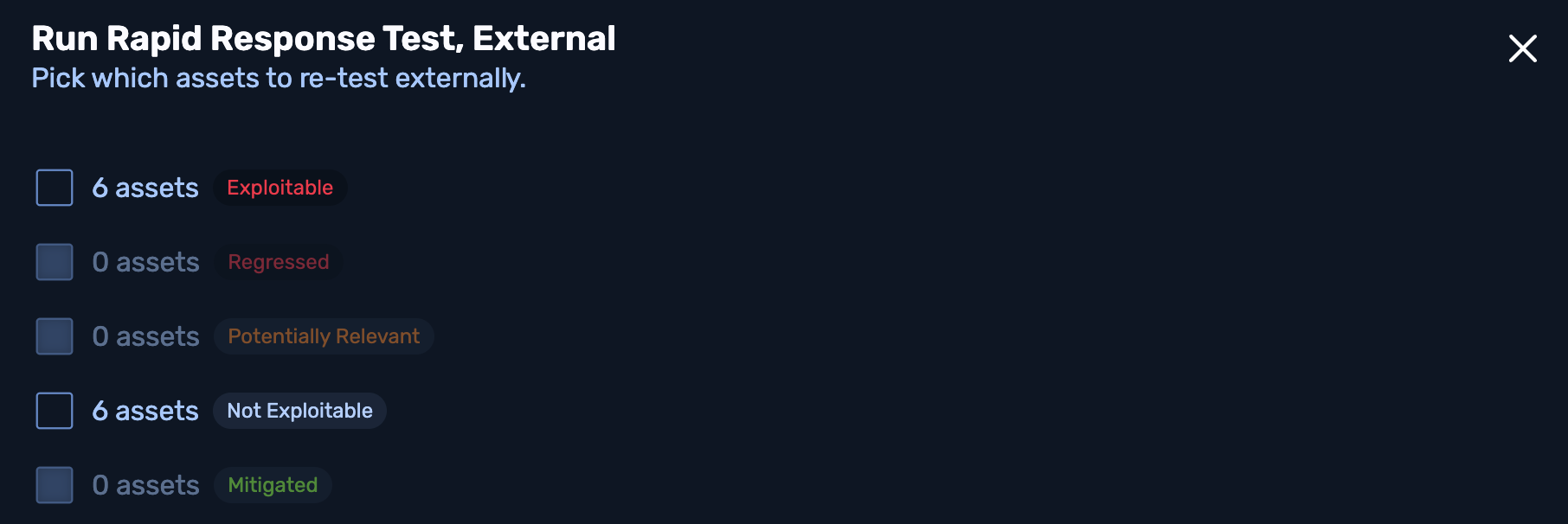
Mitigation Progress
This waterfall chart, shown below, traces the flow of relevant NodeZero pentests over time. Colors indicate Exploitable versus Mitigated status, and here again, you ideally want to see tests trend from red to green.
The trace begins when assets are found to be exploitable, and runs through their mitigated status. Any regressions extend the trace. Click a test link below the chart to see detailed test results.
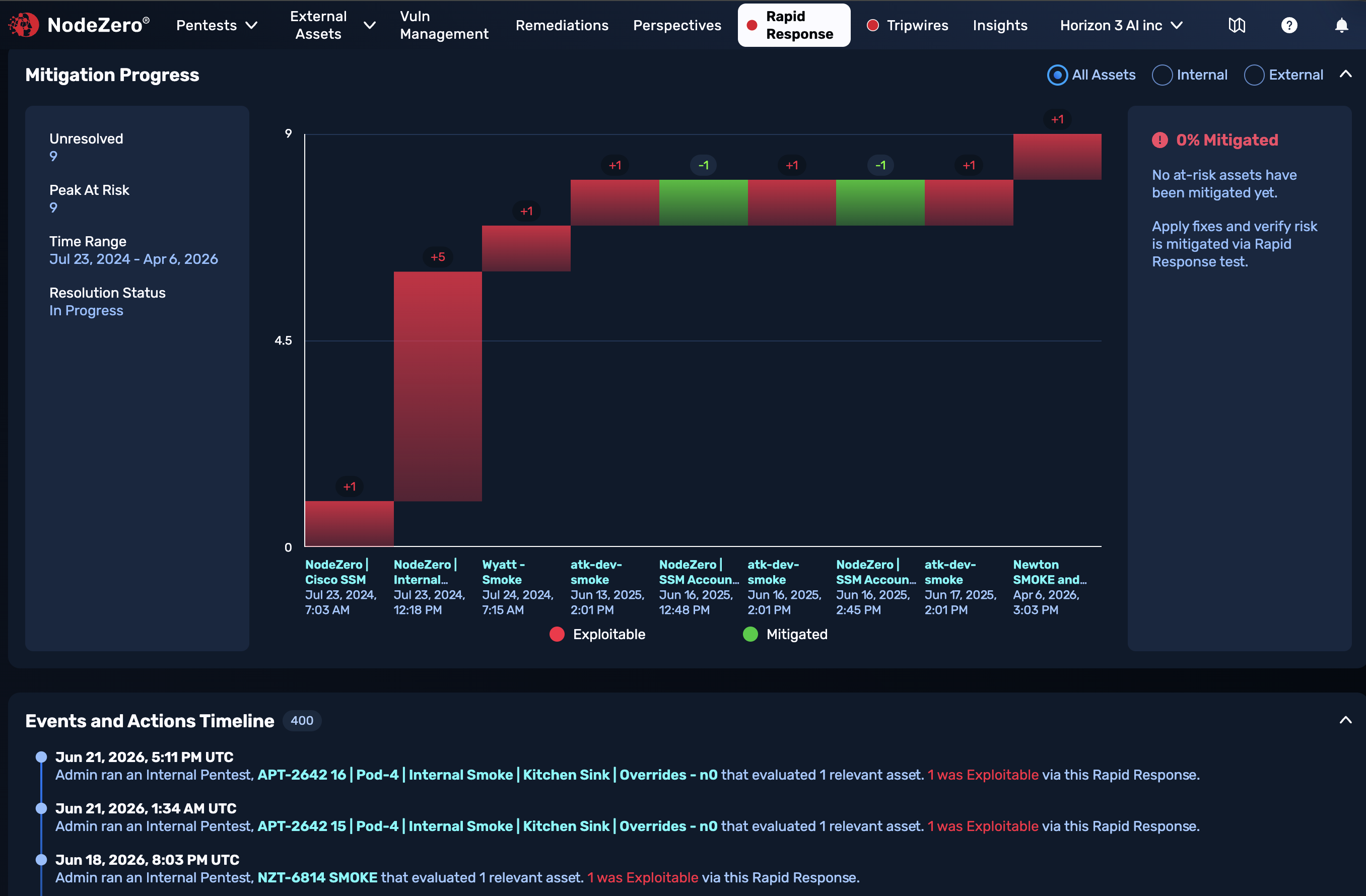
Events and Actions Timeline
This paginated list, shown at the bottom of the preceding screenshot, shows significant events in assessing the vulnerability: tests that your organization ran against relevant assets; tests by which the Horizon3 Attack Team discovered exploitable/not exploitable assets; and disclosure to vendors and public databases.
Entries include a timestamp, and (where relevant) the user who ran the test, the number of assets evaluated, and a summary of the results.
Relevant Tests
In the Relevant Rapid Response Tests paginated table, shown below, you can click through to individual Rapid Response (targeted) Test results pages. This table includes both internal and external tests, tracked against relevant Rapid Response advisories. The table provides multiple search, filtering, and sorting options.

Status Tags
On the description card at the top of an Asset Details page, you might see any combination of status indicators below the description text.
If a vulnerability is actively being assessed by the Horizon3 Attack Team, you'll see an In Progress tag will follow the title. This status progresses as follows:
- During its assessment, Horizon3 determines whether the vulnerability is truly exploitable by analyzing publicly available proofs of concept, or by reverse-engineering the vulnerability to come up with a proof of concept.
- Based on its assessment, Horizon3 will alert any Rapid Response subscribers found to be running exploitable assets on the internet, and we will add the vulnerability to NodeZero for testing.
- If Horizon3 deems a vulnerability to be of low attacker value, we will not add the vulnerability to NodeZero.
- Once Horizon3's assessment is complete, we will remove the
In Progressstatus tag.
Additional tags might be present:
CISA KEV: Displayed if the vulnerability is on the CISA Known Exploited Vulnerabilities listExploited in the Wild: Displayed if there are reports that the vulnerability has been exploited in the wild, prior to potentially making it to the CISA KEV list. This tag will not be shown if the vulnerability has been added to CISA KEV list.Found Among Horizon3 Clients: Displayed if any Horizon3 clients were found to have a vulnerable application or device in their network.Reversed by Horizon3: Displayed when Horizon3 reverse engineered the vulnerability to create a proof of concept.Discovered by Horizon3: Displayed when the vulnerability was discovered by Horizon3 as a zero-day.Original Research: Displayed when Horizon3 performed and published original analysis related to the vulnerability, outside of discovering the vulnerability or reversing it.Top Exploited: Displayed when many Horizon3 clients have been found to have the vulnerable application or device.Supports RAT: Supports tests using the Horizon3 remote access tool, which enables deeper post-exploitation analysis of what an attacker could do after compromise, and supports dropping Tripwires.