Managing Runners and Tests
This page covers options in the NetZero Portal UI for:
-
Monitoring the queue order and scheduling of pentests that are assigned to Runners.
-
Changing the priority of pentests assigned to Runners.
-
Changingg the priority of 1-Click Verify operations.
-
Adding injected credentials to a Runner, along with other options available in the Runners UI.
Minimum Runner version for Queues
The queue and priority management features outlined in the next section are available only if you upgrade your Runners to the 2026-03-04
Monitoring Runner Queues
Within the NodeZero Portal, the Pentests > Runners page's Queue column indicates any ops currently running or queued for each pentest. You'll see these indicators regardless of your license type.
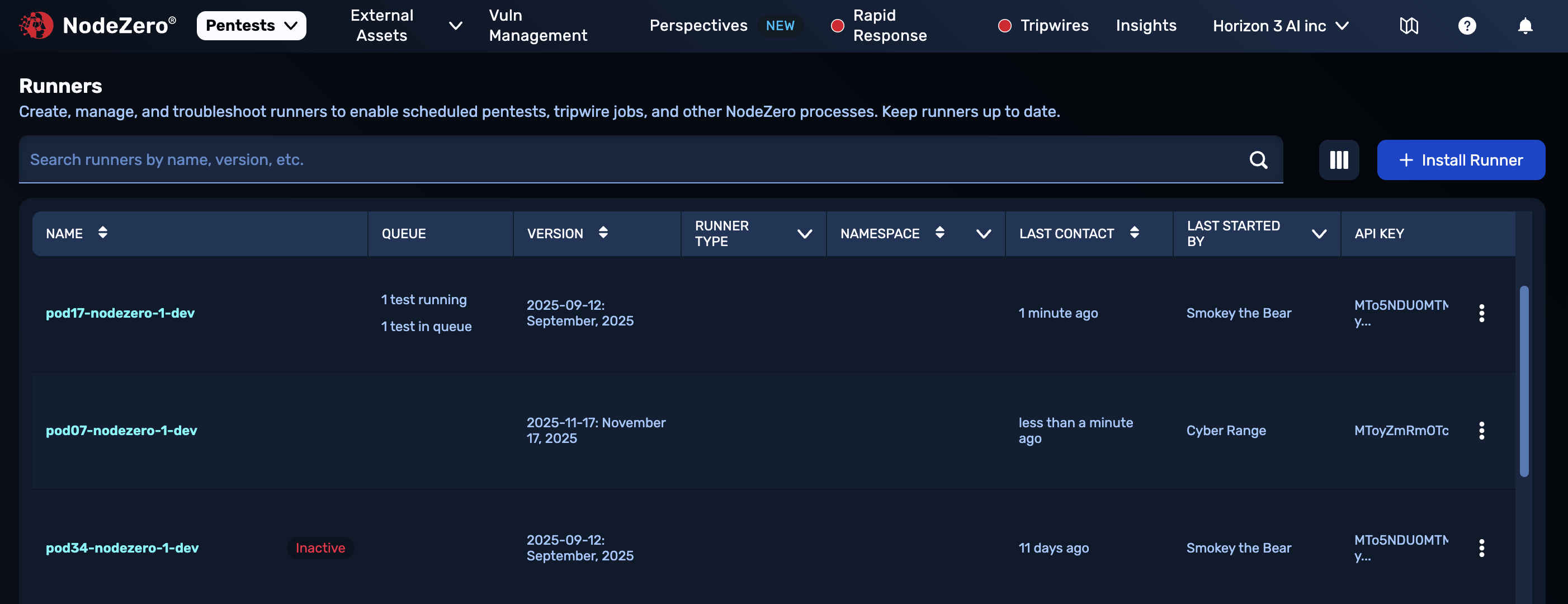
Monitoring Queue status on Pentests > Runners page
Pentest Queueing Priority
NodeZero provides several ways to control the execution order of pentests assigned to Runners.
Not available on all license types
Flex licenses do not support the scheduling and active queueing controls outlined in this section.
-
Queue tests: Stack multiple pentests (including One-Click Verity tests) onto a Runner, and let NodeZero work through them in order.
-
Skip the queue: When you configure a new pentest or a One-Click Verity test, you can assign it priority to execute immediately.
-
Run Now: Prioritize an already queued test to execute immediately.
-
Run Next: Prioritize a queued test to execute right after the current test completes.
These options enable you to use a single Runner to manage multiple ops, while running high-priority ops as soon as you need to.
When you select Skip the queue or Run Now,, NodeZero will pause any test currently running, and will maintain its state. That op will resume in queue order, after the op you've accelerated.
New Test: Run Now or Queue
When you define a new pentest and assign it to a Runner, a Skip the queue and run immediately check box appears. Select this check box if you want to preempt any running or queued ops.
If you don't select it, and you proceed to Run Pentest while tests are currently running or queued, NodeZero will automatically add the new test to the bottom of the queue.
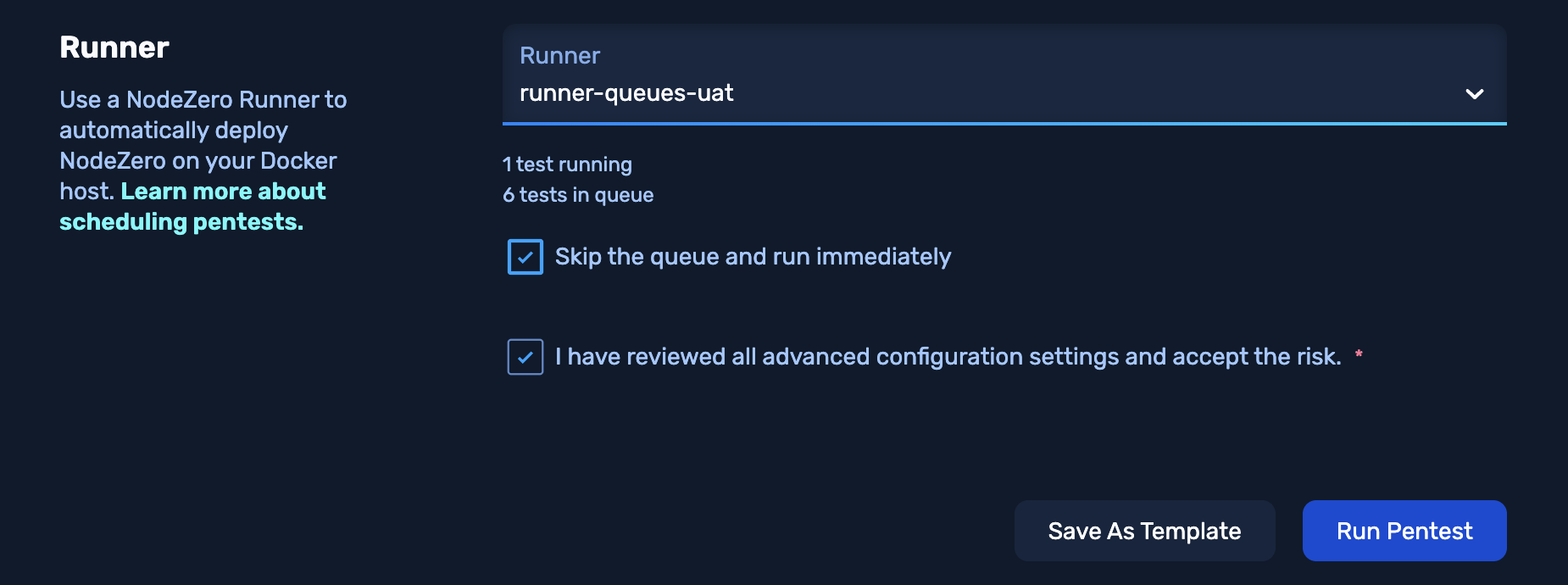
Specifying immediate execution of a new pentest
Verify Immediately
Like the pentest config, the 1-Click Verify modal offers a Skip the queue and run immediately check box, which works the same way.
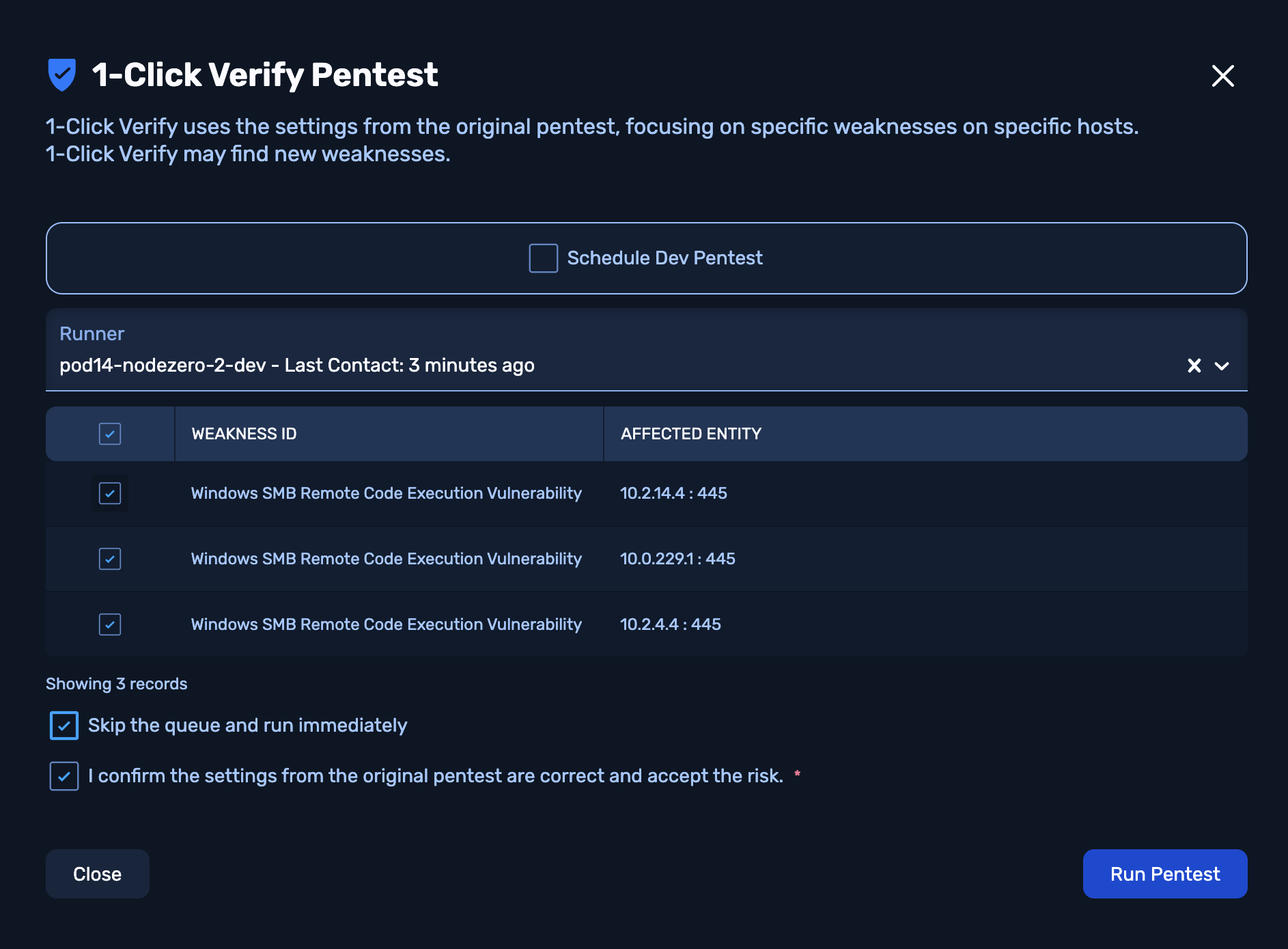
Specifying immediate execution of a 1-Click-Verify test
Reorder the Test Queue
On a Runner's details page, the Queue tab enables you to specify pending ops' priority. These controls appear in the Change Queue Order column, in specific conditions.
A Run Now button appears when at least one pentest is preparing, running, or queued. Click this button to run a specified op immediately – potentially pausing a pending or running op.
A Run Next button appears when at least one pentest is queued behind the currently running test. Click this button to move a specified op to the top of the queue, to execute after the current op.
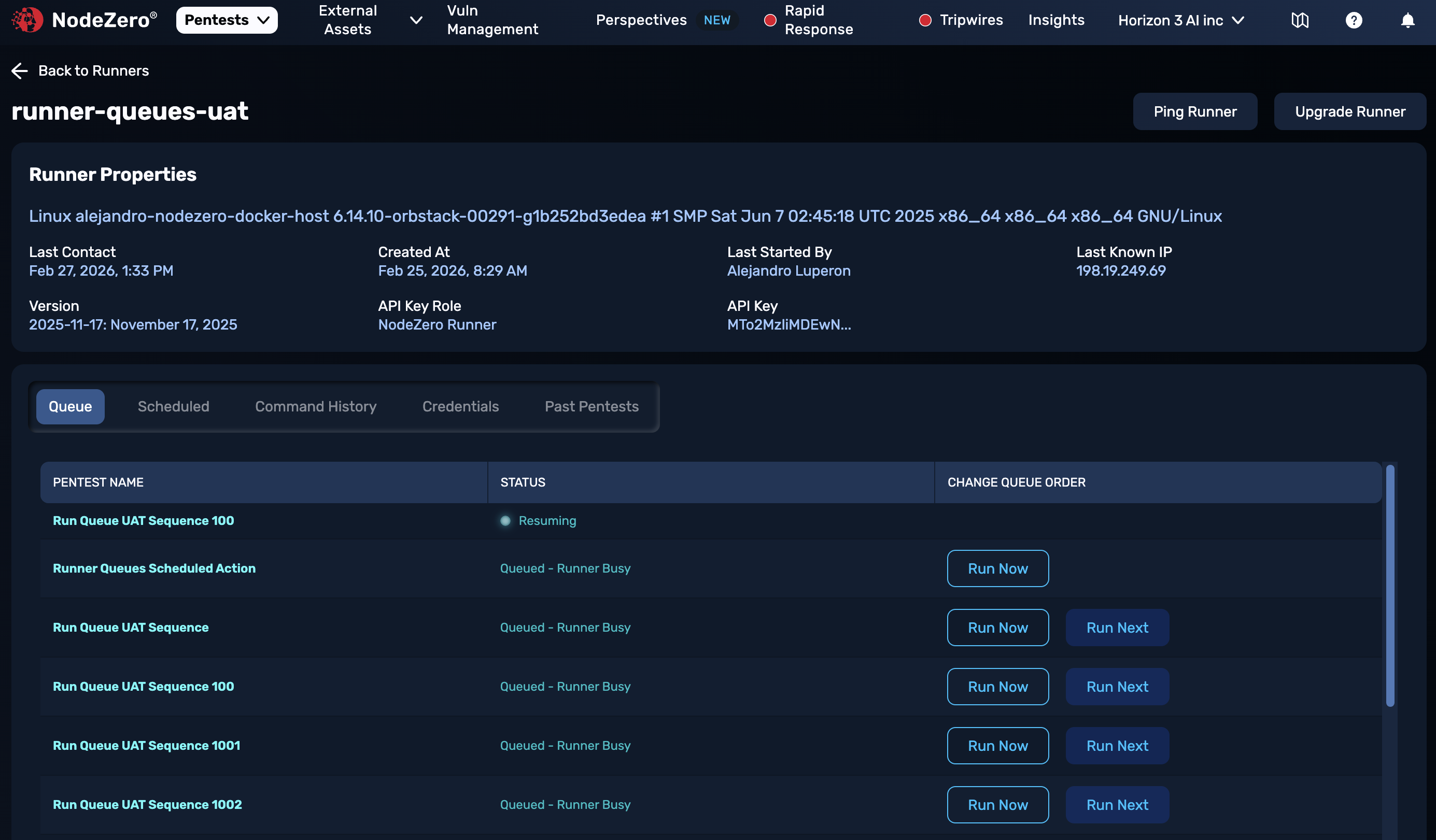
A Runner queue with Run Now and Run Next options
Ensuring Host Capacity
To support the pause-and-resume behavior described above, NodeZero creates a separate container to maintain each paused pentest's state. If you pause multiple tests on a single host, this might require provisioning disk space beyond minimal Host Requirements. Container footprints will vary as tests proceed and discover weaknesses.
Runner Controls
Each Runner's details page provides the following monitoring and management tabs to the right of the Queue tab highlighted above.
Monitoring Schedules
The Scheduled tab shows schedules assigned to execute on this Runner.

A Runner's Scheduled tab
This tab does not appear with a Flex license, which does not support scheduling.
Command History
This tab lists recent commands sent to this Runner, with columns displaying the:
- Command name.
- Received and Completed timestamps (UTC).
- Exit status.
- Log (click a View link to display the
stdout/stderrfor the corresponding command).
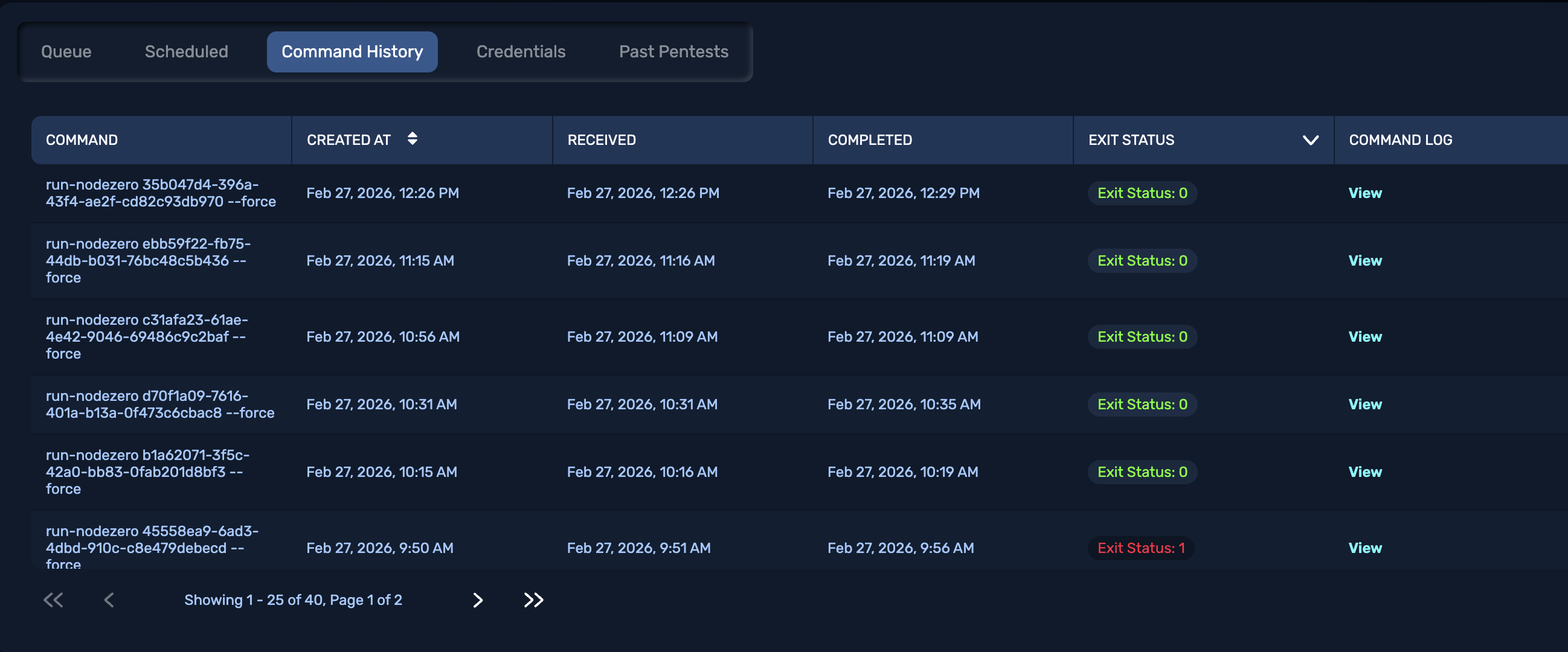
A Runner's Command History tab
Injecting Runner Credentials
On a Runner's Credentials tab, you can click + Add Credential to automatically inject a credential into the Runner, as you would do on a scheduled test.
Injecting credentials emulates the impact that an attacker might have if using credentials that they've compromised. By injecting a credential at the Runner level, you can auto-inject the credential into this Runner's tests without having to apply it to specific pentests.
Selecting this option might prompt you to first upgrade the Runner.
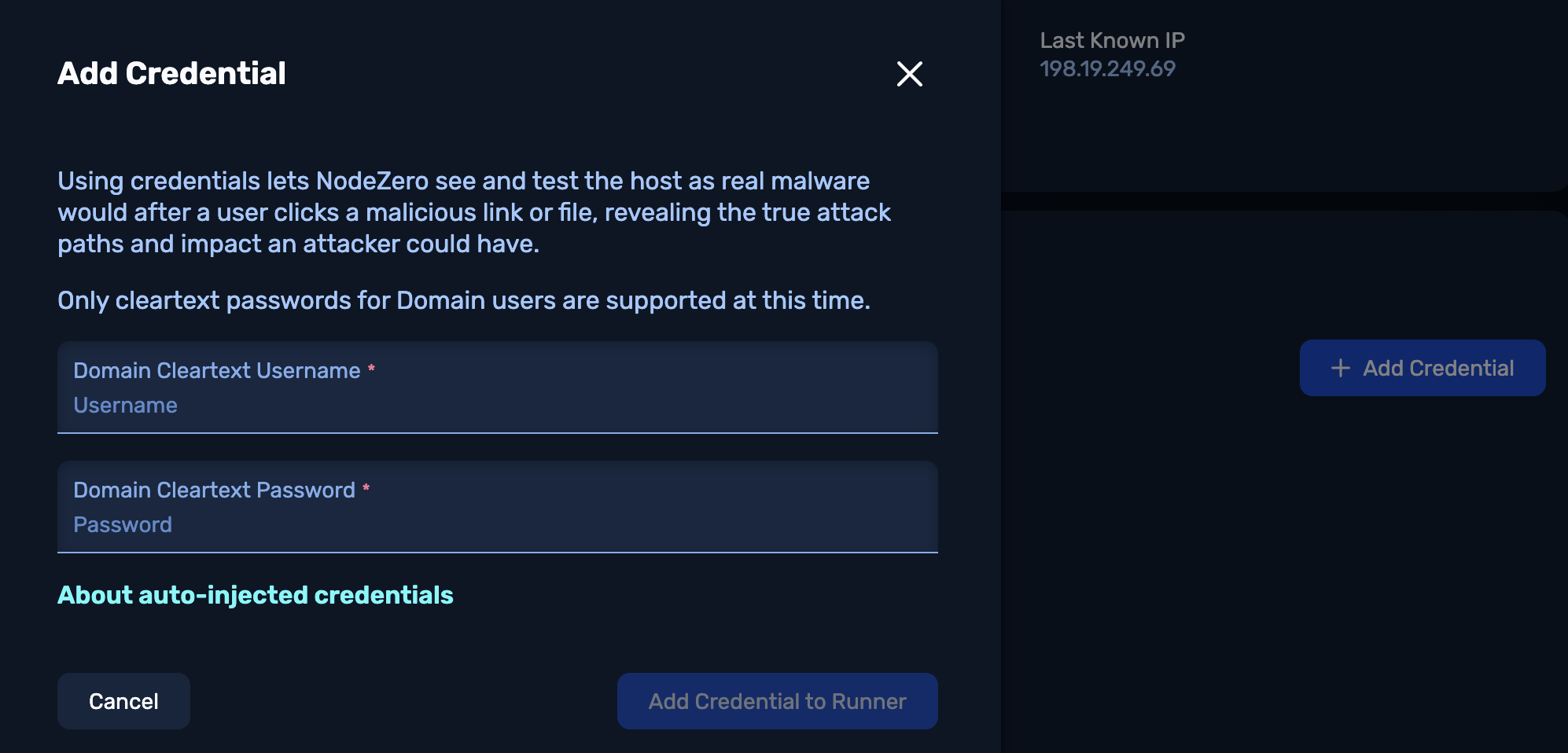
Adding a credential to a Runner
Past Pentests
This tab lists pentests that have completed on this Runner, with columns displaying the:
- Op name.
- Status (typically Done or Ended).
- Number of discovered Impacts and Weaknesses.
- Number of Credentials and Hosts involved.
- Completion time (UTC).
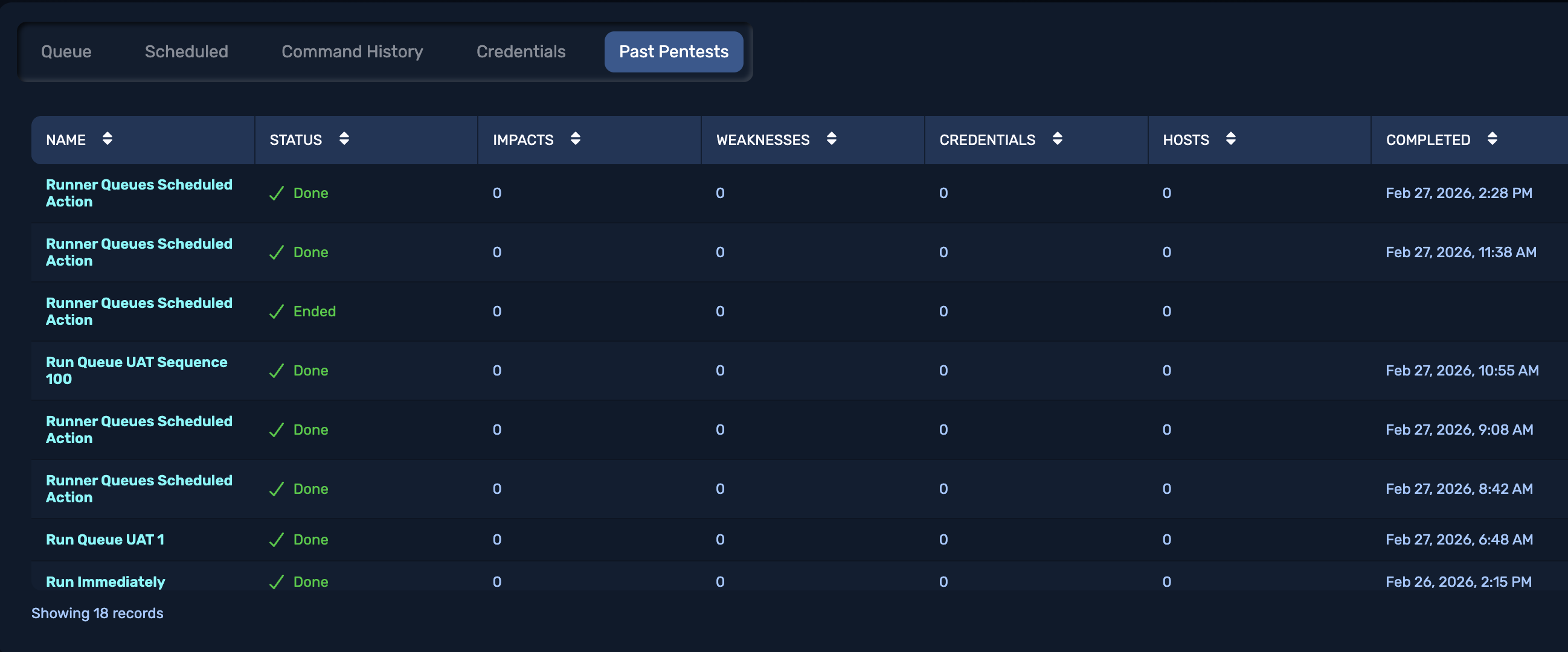
A Runner's Past Pentests tab