Azure Cloud Pentest Troubleshooting
This page covers common errors you may encounter during Azure Cloud connection setup or at pentest launch.
Connection Setup Errors
Admin Consent Shows AADSTS700016
Symptom: After clicking Create Connection, you're redirected to Azure but see a Microsoft sign-in error instead of the admin consent prompt:
AADSTS700016: Application with identifier was not found in the directory
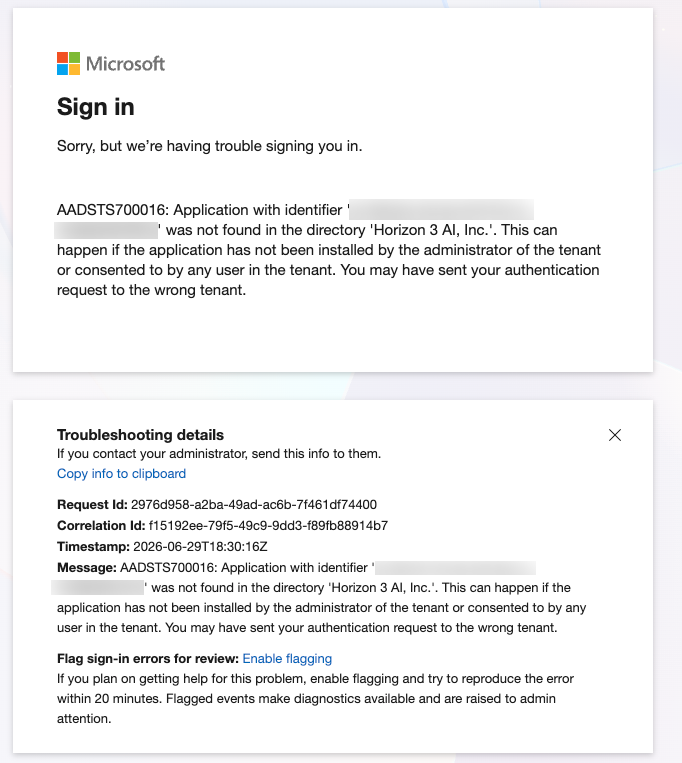
Cause: The Horizon3 Cloud Connector multi-tenant application hasn't finished replicating to your tenant yet.
Fix: Refresh the page. The admin consent prompt should appear within 10–15 seconds.
Admin Consent Returns a Microsoft Error Page
Symptom: After clicking Accept on the admin consent screen, Microsoft redirects you to an error page instead of back to NodeZero.
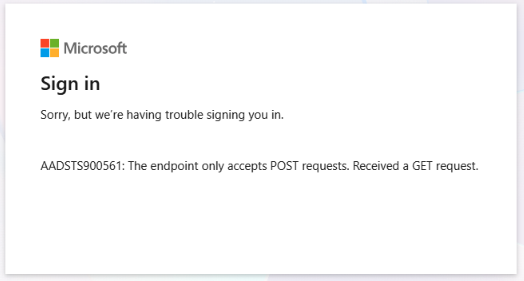
Fix: Clear your browser's cookies and cache, then return to NodeZero and click Create Connection again to restart the consent flow.
Pentest Launch Errors
Subnet Blocked by NSG
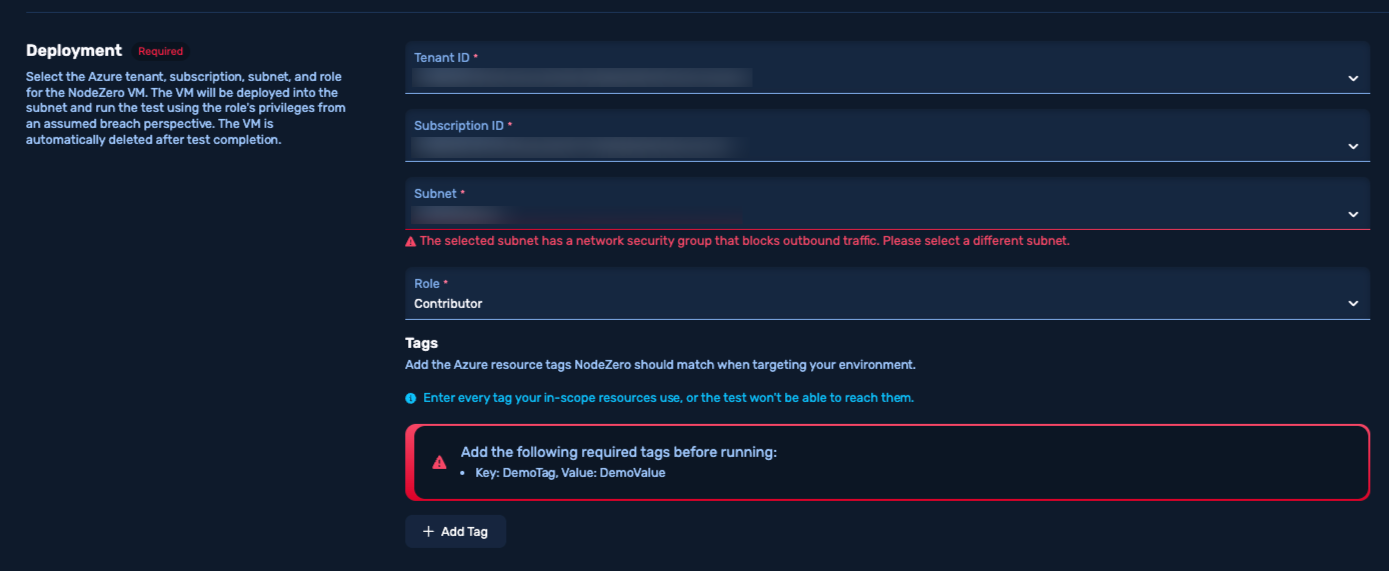
Symptom: After selecting a subnet, the Deployment section shows:
The selected subnet has a network security group that blocks outbound traffic. Please select a different subnet.

Fix: Select a different subnet that allows outbound traffic, or modify the NSG on the affected subnet to permit outbound connectivity. See Private subnet enabled if there's no NSG rule but the error still appears.
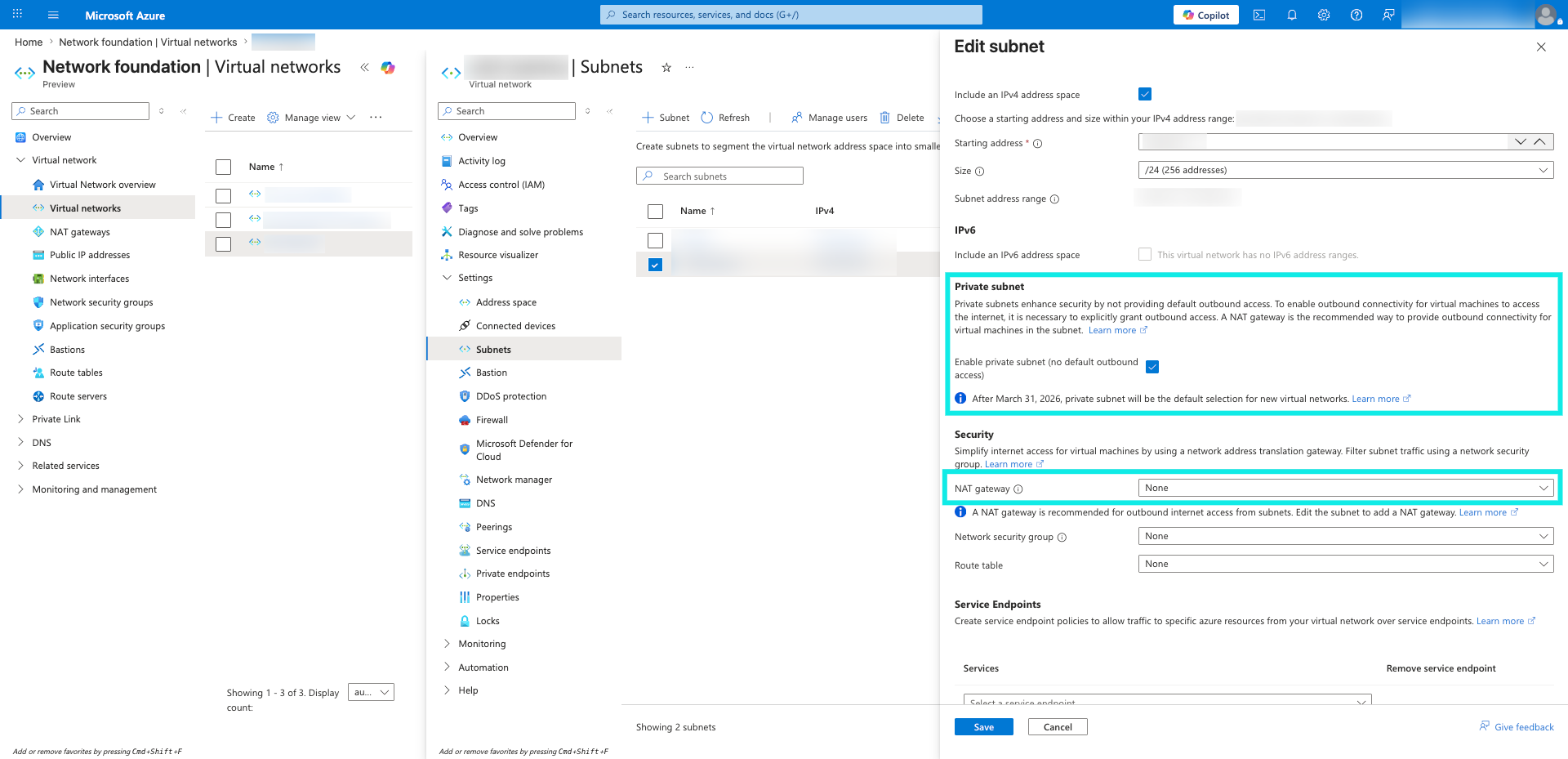
Private Subnet Enabled
Symptom: The subnet outbound error appears even though no NSG rule is blocking traffic.
Cause: The subnet has Enable private subnet (no default outbound access) checked in Azure, which removes default outbound connectivity regardless of NSG rules.
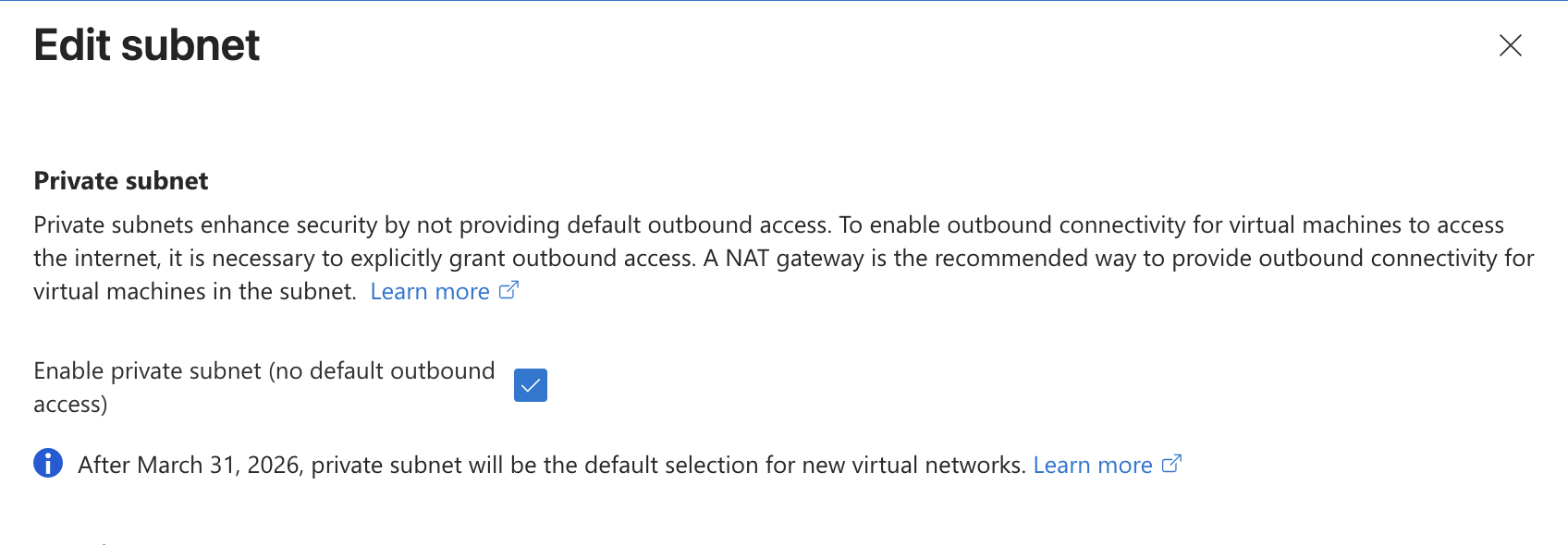
Fix: In the Azure portal, open the subnet settings and uncheck Enable private subnet. Alternatively, attach a NAT gateway to the subnet to provide explicit outbound connectivity.
Insufficient VM Quota
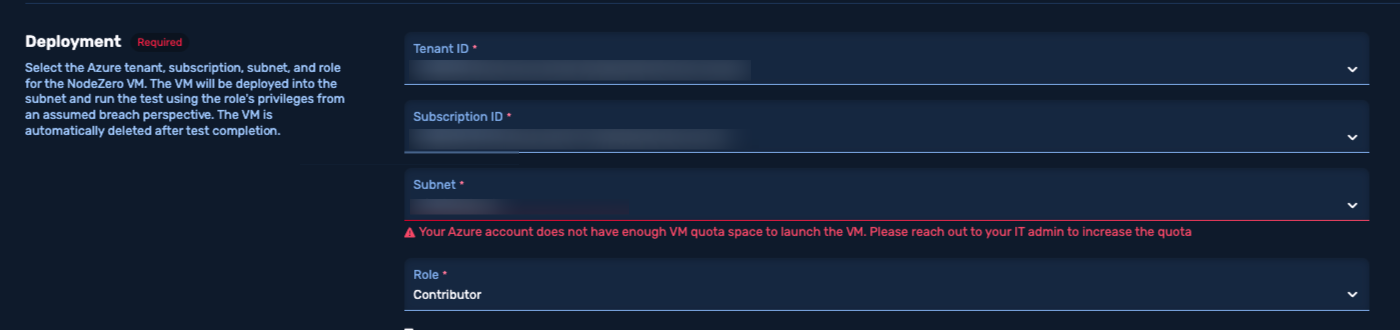
Symptom: After selecting a subnet, the form shows:
Your Azure account does not have enough VM quota space to launch the VM. Please reach out to your IT admin to increase the quota.
Fix: NodeZero tries several equivalent VM sizes, so only one of their families needs headroom. Ask your Azure administrator to increase the vCPU quota for any one of the following in the target region, or select a different subscription that has sufficient quota.
| Your VNet's region | Quota to increase (any one) |
|---|---|
| East US | Standard Dasv7 Family vCPUs, or Standard Dsv7 Family vCPUs |
| All other regions | Standard Dsv6 Family vCPUs, Standard Dsv7 Family vCPUs, or Standard Dav6 Family vCPUs |
Total Regional vCPUs is a separate quota bucket that the VM also draws from, so it needs at least 4 cores free regardless of which family you raise.
Azure Policy Blocks Deployment
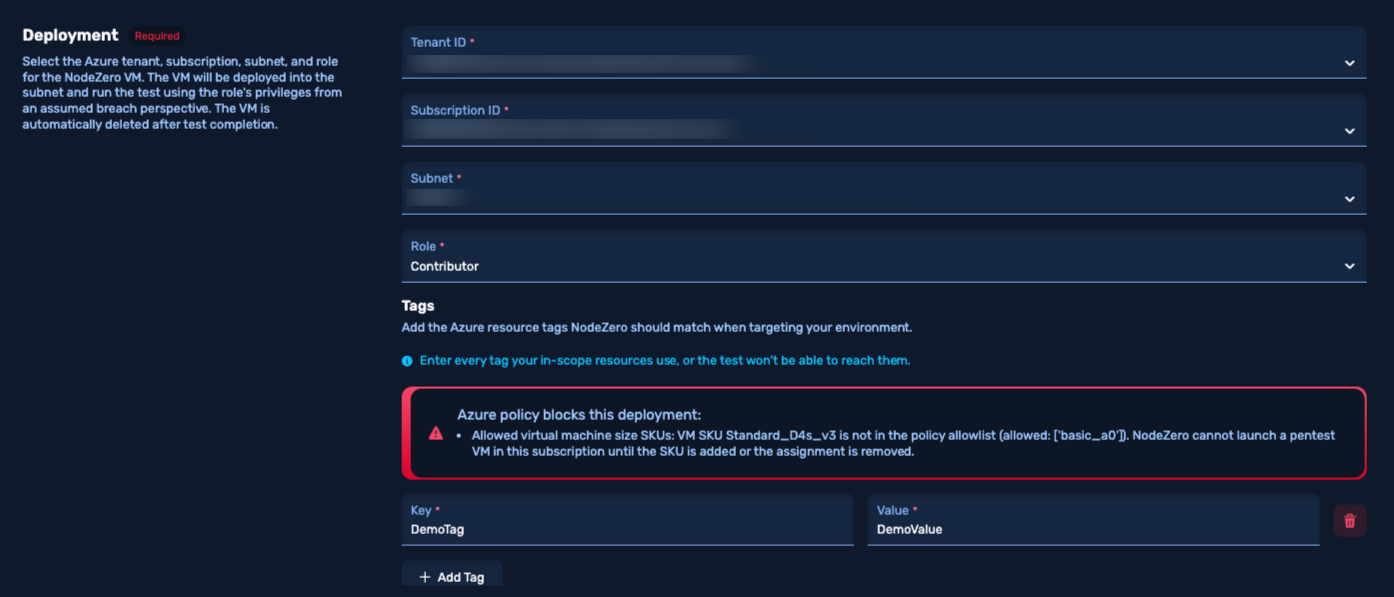
Symptom: A banner in the Deployment section reads:
Azure policy blocks this deployment:
None of NodeZero's VM SKUs [...] are in the policy allowlist (allowed: [...]). NodeZero cannot launch a pentest VM in this subscription until at least one of them is added or the assignment is removed.
Fix: Work with your Azure administrator to expand the allowed VM SKU policy to include at least one of the sizes that NodeZero tries in the affected region. These sizes are:
-
Standard_D4as_v7orStandard_D4s_v7in East US. -
Standard_D4s_v6,Standard_D4s_v7, orStandard_D4as_v6elsewhere.
Alternatively, temporarily exempt the NodeZero resource group from the policy assignment.
Missing Required Resource Tags
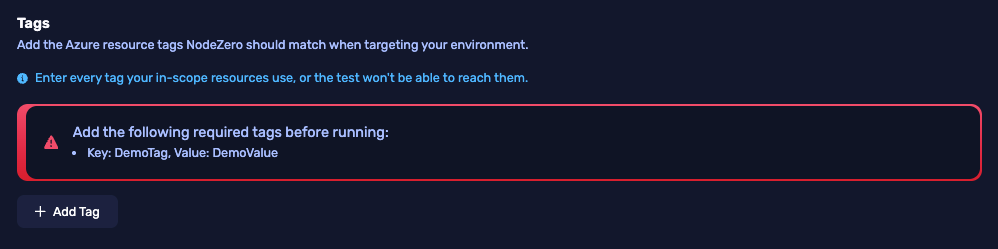
Symptom: A banner in the Tags section reads:
Add the following required tags before running:
• Key: [tag key], Value: [tag value]
Cause: Your Azure environment enforces required tags via policy. NodeZero surfaces these tags so you can add them before launch — without them, the deployed VM won't be visible to your in-scope resources.
Fix: Add each required key/value pair using + Add Tag in the Tags section before clicking Run Pentest. Both the tag error and any subnet NSG error must be resolved before the form will submit.